
You will need:
- A Version Story account
- The Claude desktop app or claude.ai
Installing the plugin is one step: add the plugin in Claude's plugin settings. Everything else — signing in, transferring documents, saving redlines — the plugin handles itself, and there is no network allowlist to configure. The one capability the plugin does require is Cloud code execution and file creation. See the plugin overview for what it does and why.
Pick the path that applies below. If your team has already added Version Story in organization settings, open Set up as a member of an organization.
Set up for an organization
An owner uploads the plugin once for the whole organization, releases it to members, and turns on code execution. Each member then adds it by following Set up as a member of an organization below.
1. Add the plugin
-
Download the plugin: version-story-mcp-plugin.plugin. Your browser saves it to your Downloads folder.
-
Open Organization settings and go to Plugins (under Libraries & Access).
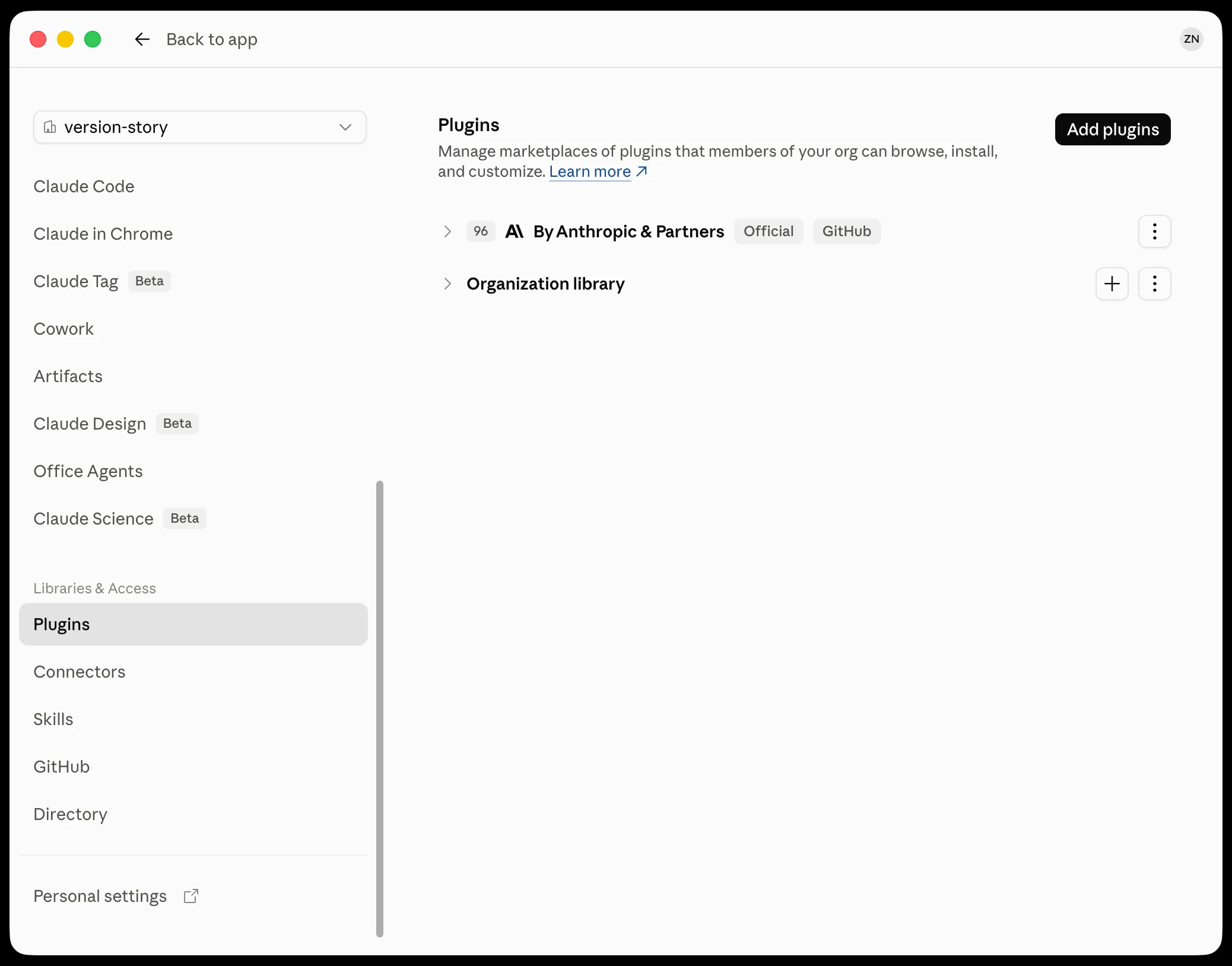
Organization Plugins settings with the Add plugins button -
Click Add plugins → Upload a file.
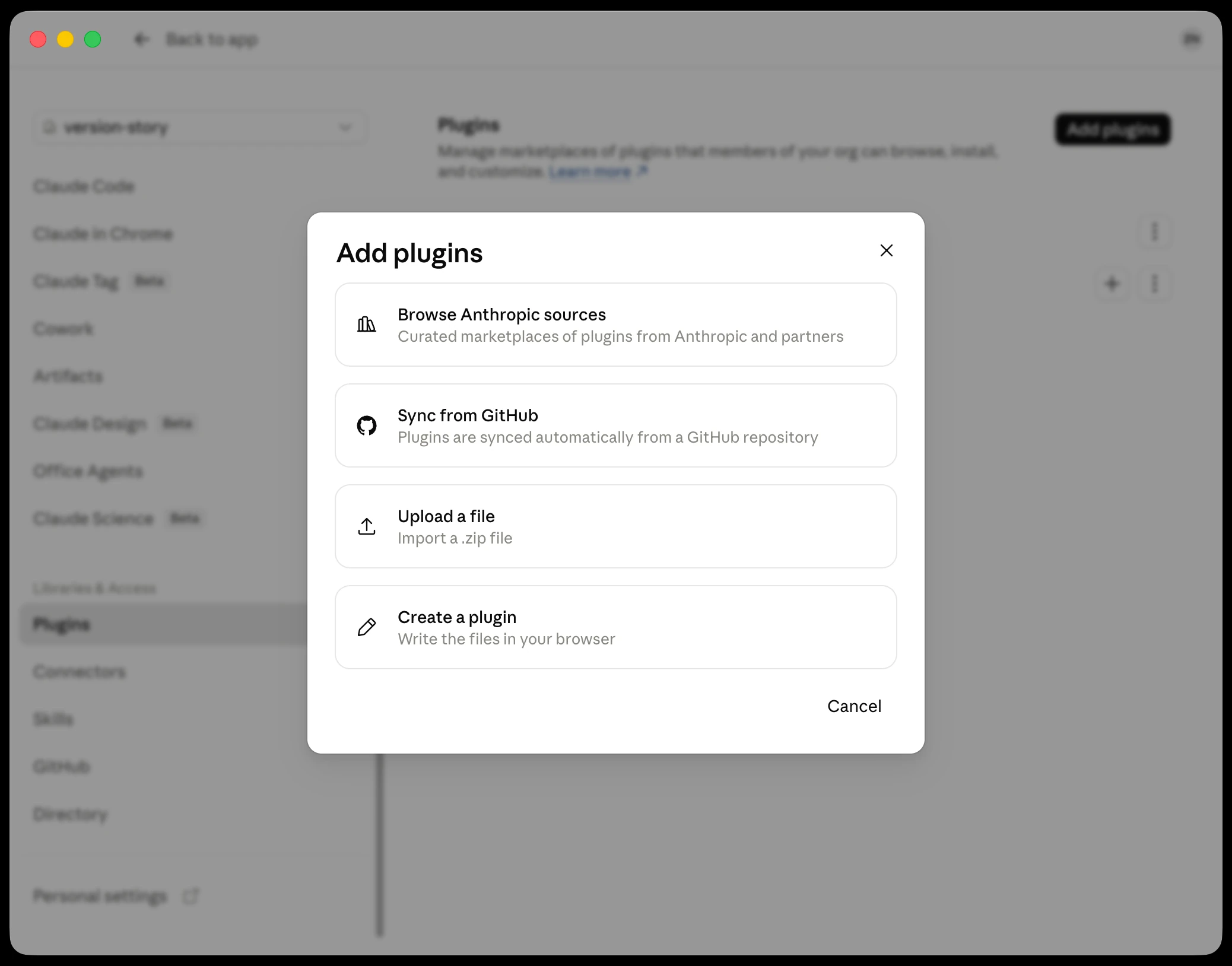
Add plugins dialog with Upload a file highlighted -
Choose the
version-story-mcp-plugin.pluginfile you just downloaded and click Upload.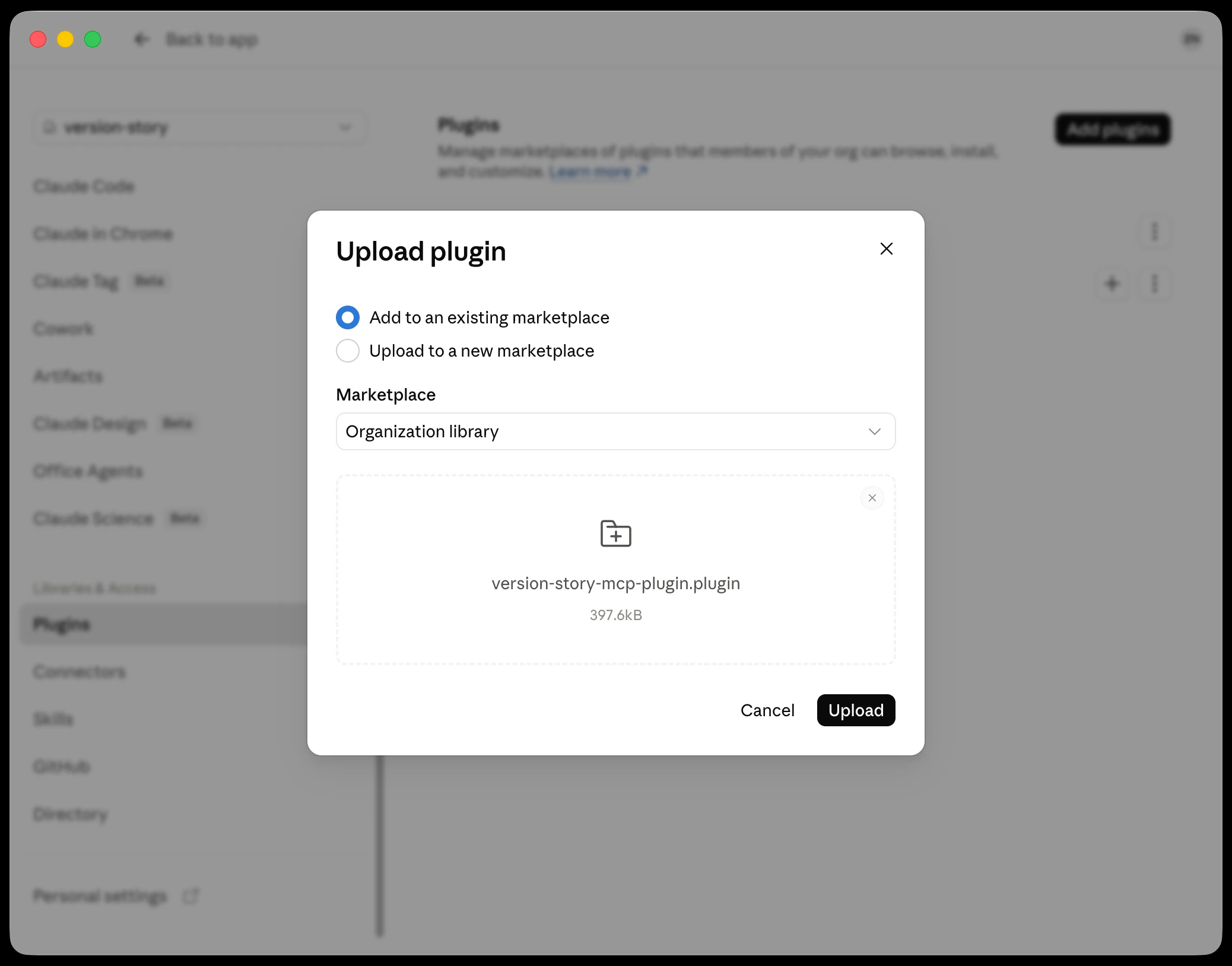
Upload plugin dialog with the plugin file selected -
Set User access to Available to install. This step is not optional — a newly uploaded plugin starts as Not available, which hides it from every member's plugin directory, and members get no error explaining why they cannot find it.
- Installed by default and Required add it for every member instead, with no action on their part. Members then skip straight to Update your system prompt.
- Uploading a newer Version Story plugin with the same name replaces the installed version, so this is also how you push an update. Changes reach each member on their next session.
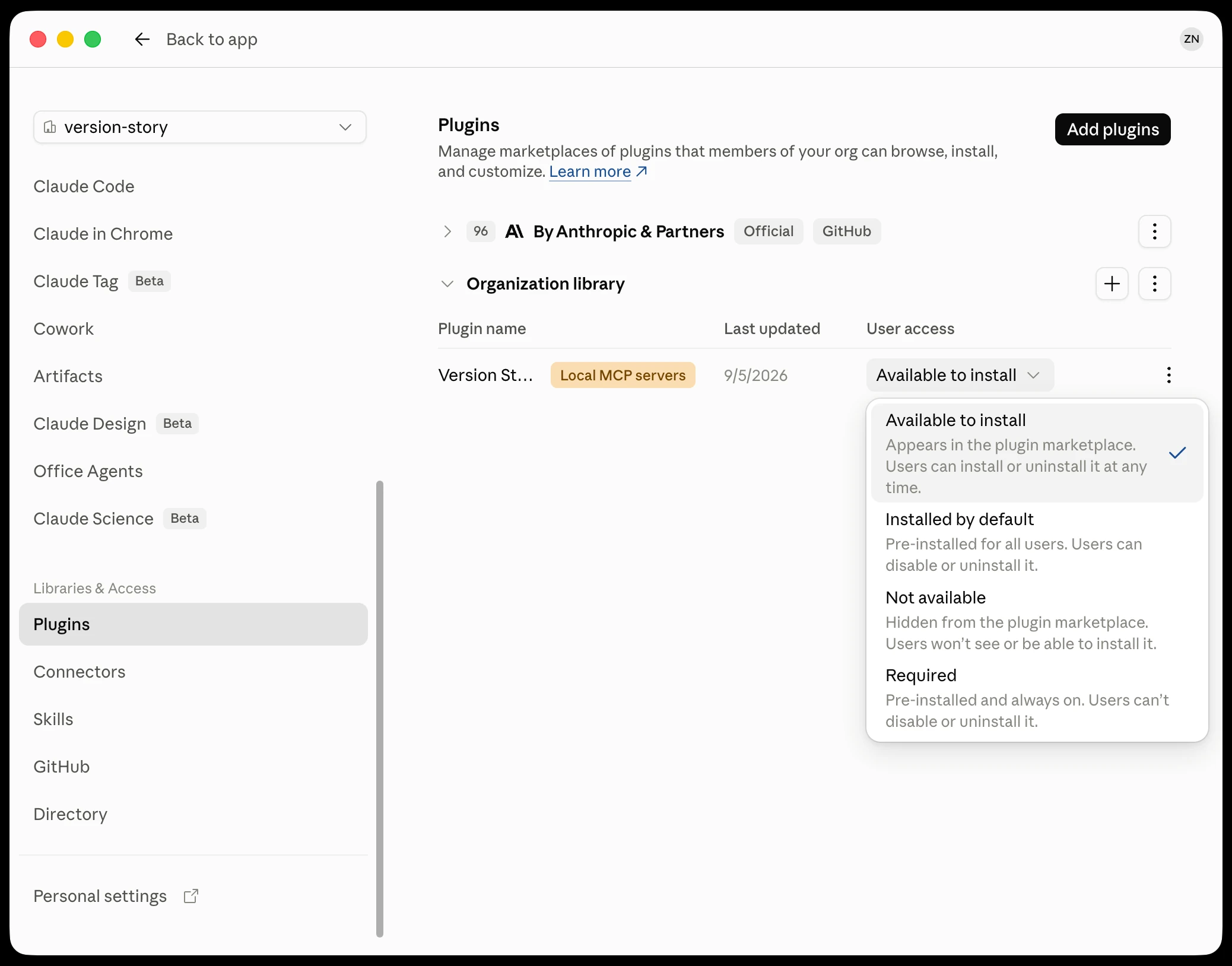
User access set to Available to install
2. Enable code execution
An owner turns on code execution once for the whole organization.
-
Open Capabilities in Organization settings and make sure Cloud code execution and file creation is turned on. Members cannot use the plugin without it.
- Network egress and the domain allowlist can stay as they are. The plugin transfers documents from its own process, so it needs neither.
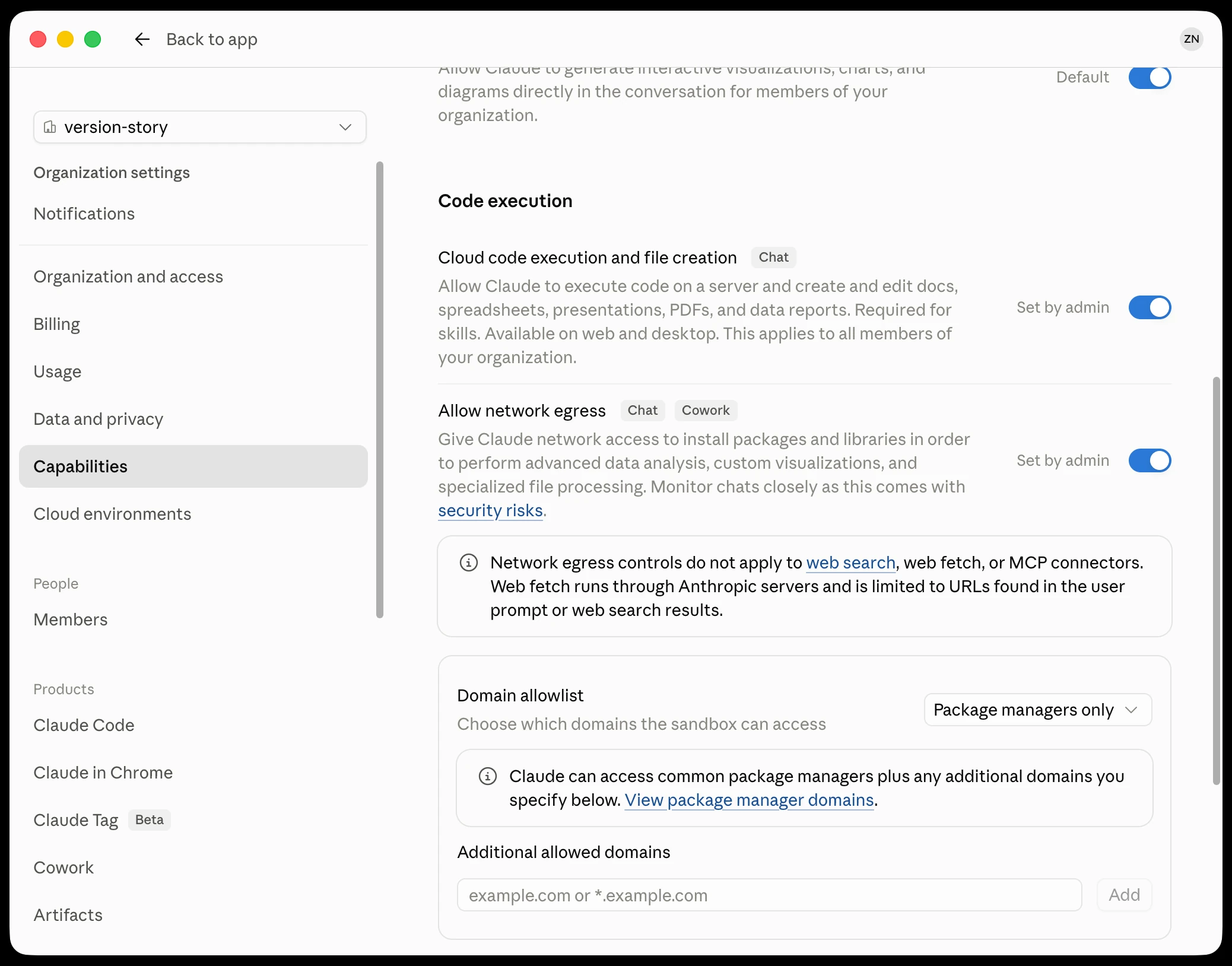
Organization Capabilities with cloud code execution turned on
Set up as a member of an organization
An owner has already uploaded Version Story in Organization settings and turned on code execution, so there is nothing to download or configure. The plugin is waiting in your plugin directory. Add it once on your own account and it is ready to use.
1. Install the plugin
-
Open Settings → Customize → Plugins. Version Story is listed on the Discover tab, marked as coming from your organization.
- If it is not there, an owner has uploaded it but has not released it yet. Ask them to set User access to Available to install in Organization settings — plugins start out hidden.
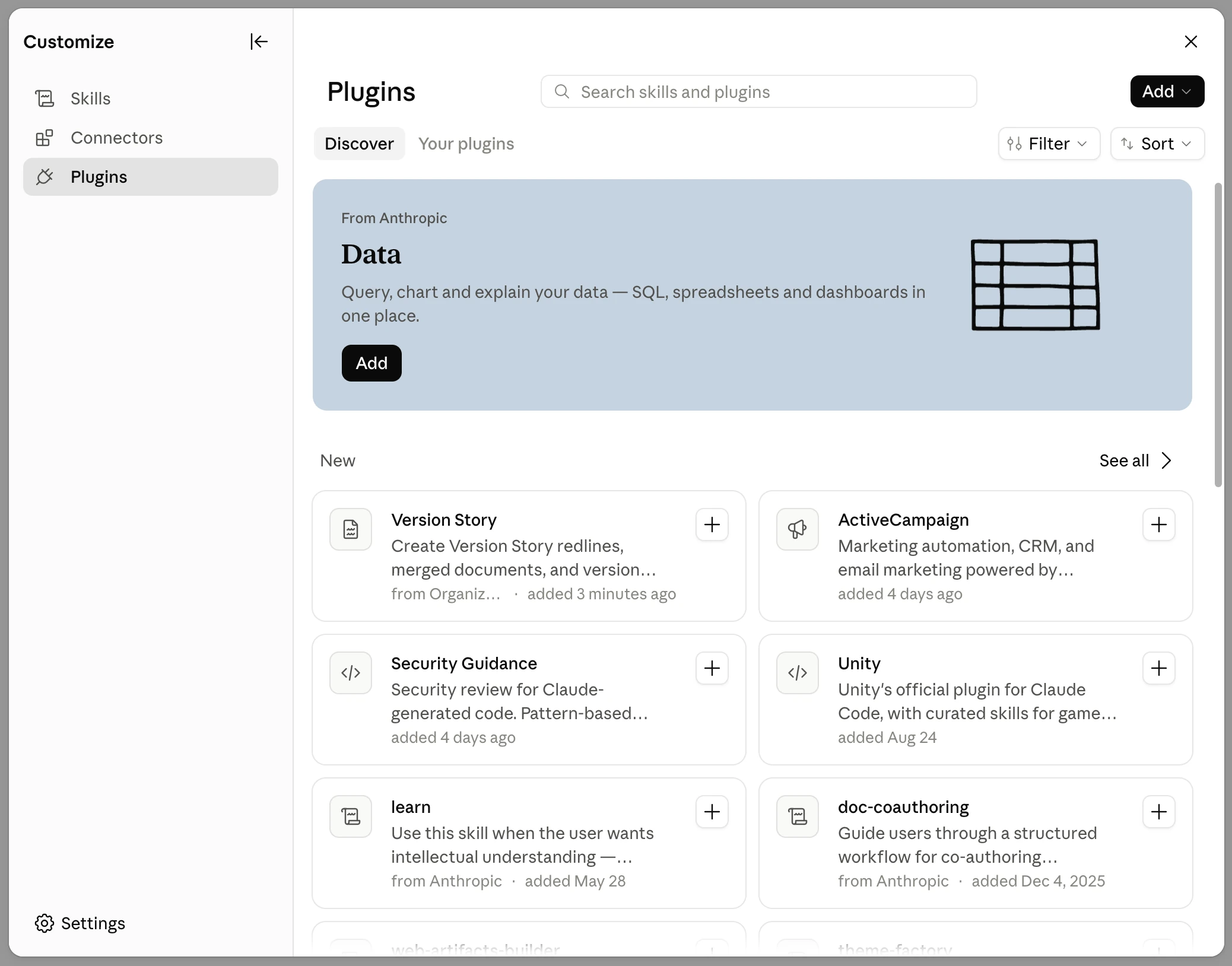
Plugins Discover tab with Version Story from the organization -
Click Version Story, then click Add.
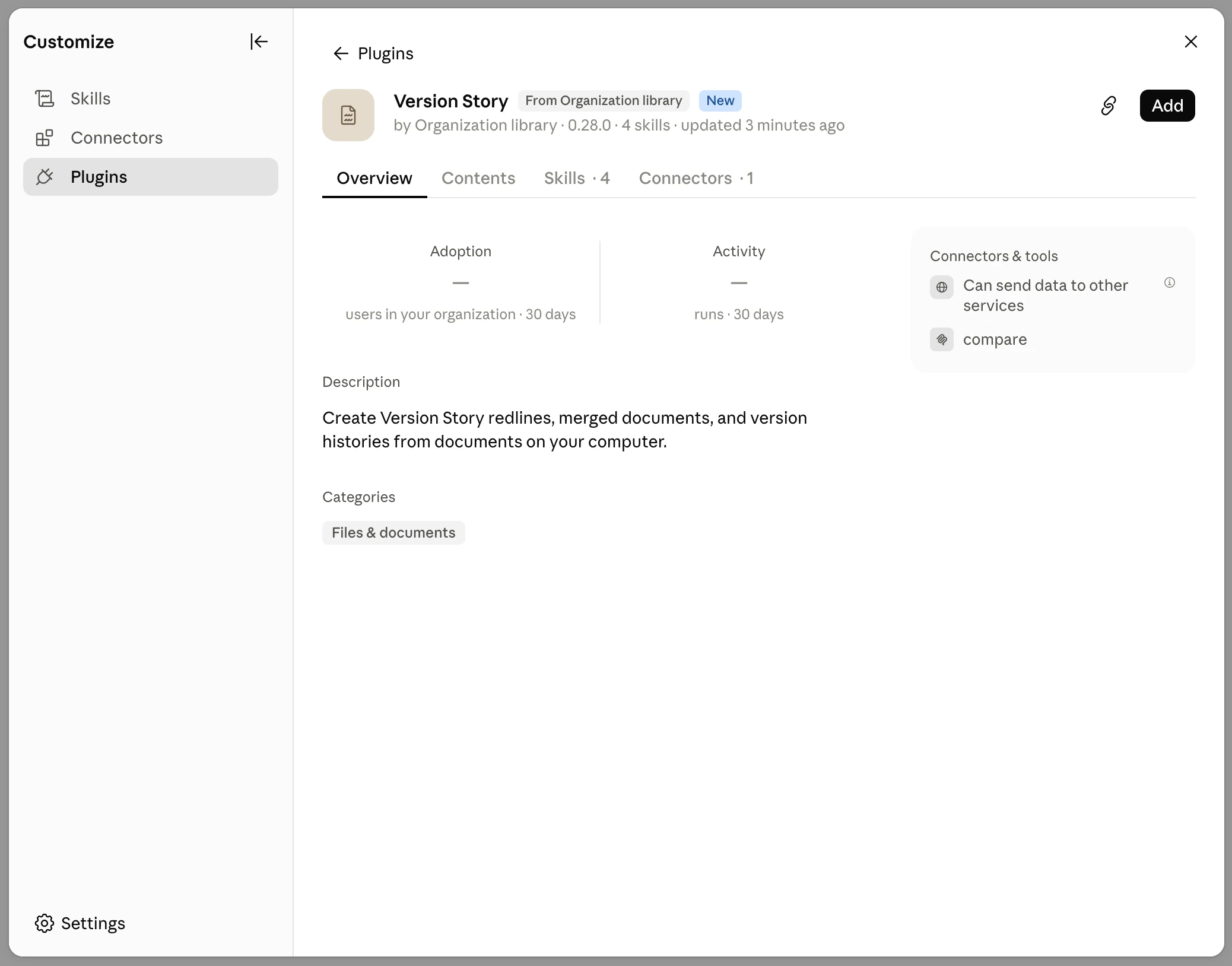
Version Story plugin page with the Add button -
Claude points out that the plugin includes a local MCP server named
compare. That is the piece that does the comparison work on your own machine, so this is expected. Click Continue.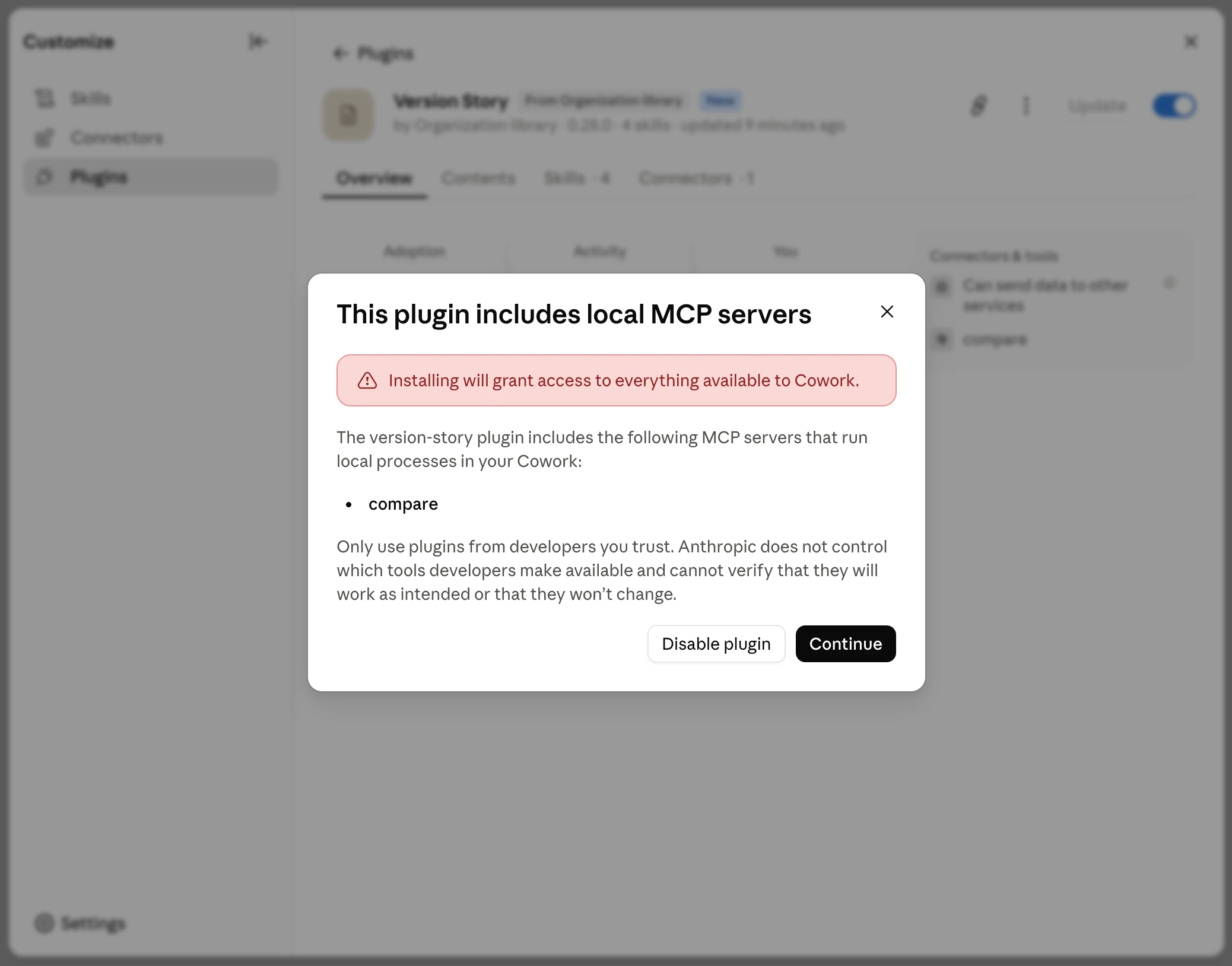
Local MCP servers notice listing the compare server -
The plugin turns on automatically. Its skills —
/compare,/merge,/combine, and/version-history— are available in Cowork.- If the comparison tools are not available right away in the desktop app, quit and reopen Claude — or wait about ten minutes, since the plugin finishes activating on its own — then start a new conversation.
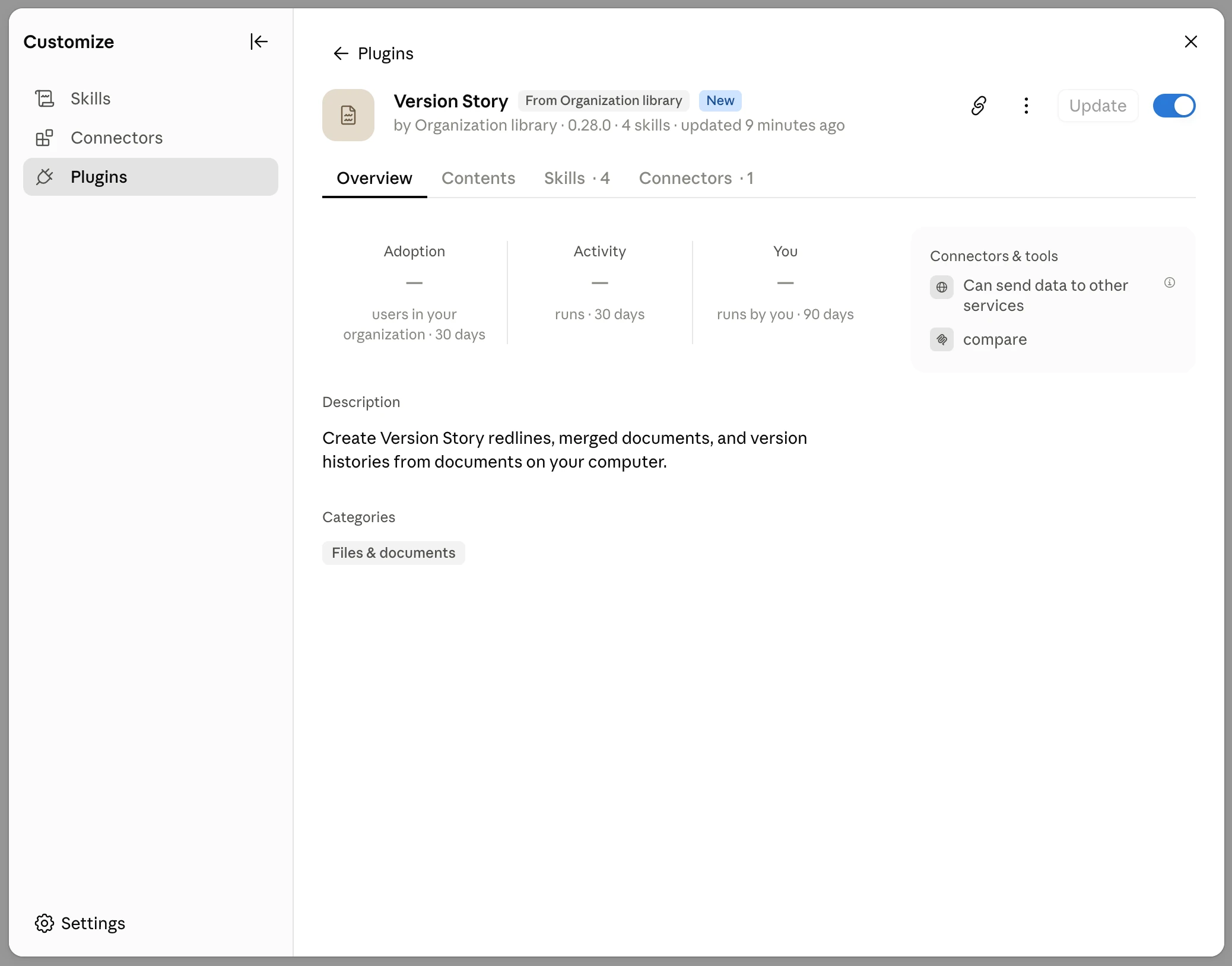
Version Story plugin added and enabled
Set up on a personal account
1. Add the plugin
-
Download the plugin: version-story-mcp-plugin.plugin. Your browser saves it to your Downloads folder.
-
In Claude, open Settings → Customize → Plugins.
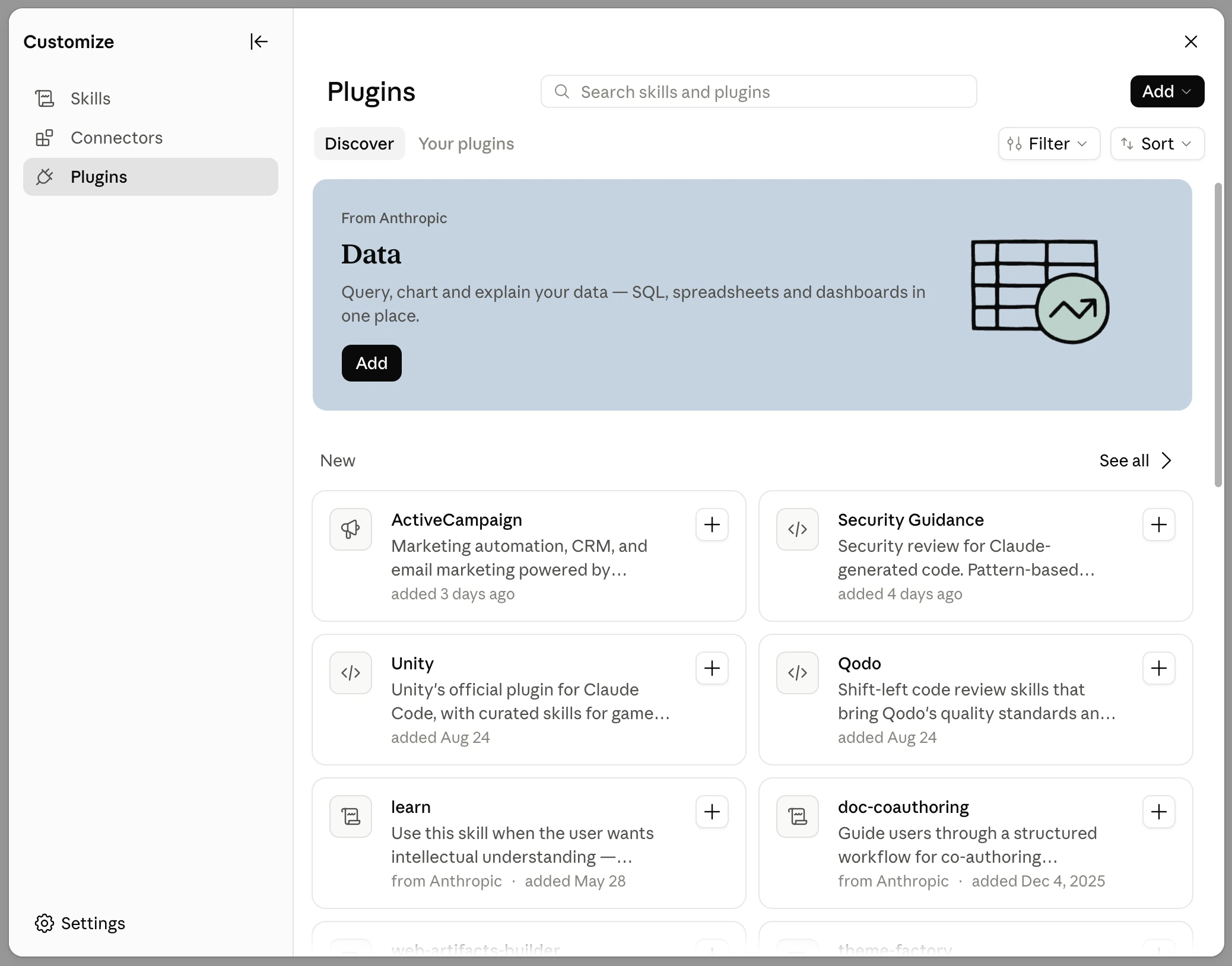
Plugins screen in the Customize panel -
Click Add → Upload plugin.
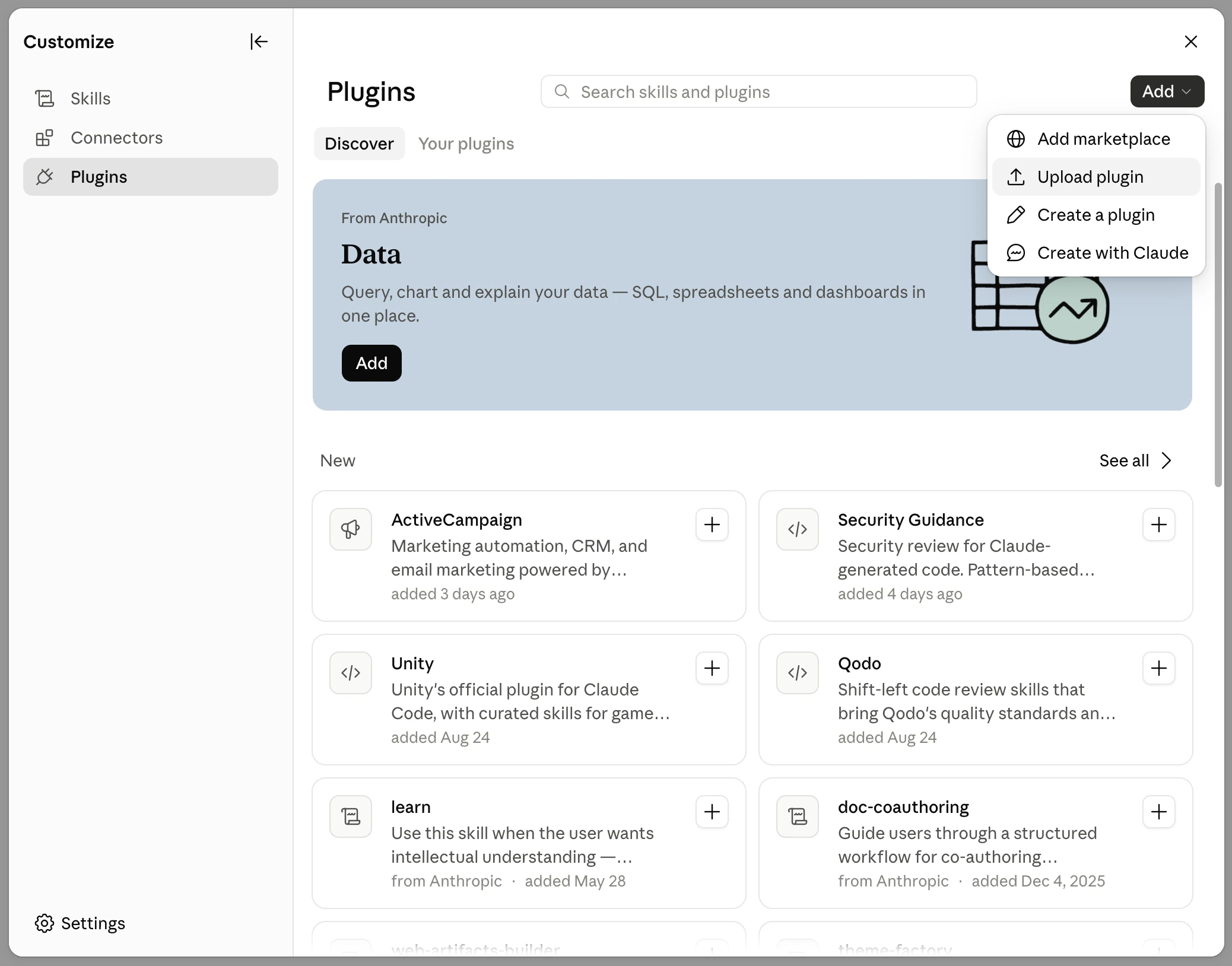
Add menu with Upload plugin highlighted -
Drag the
version-story-mcp-plugin.pluginfile onto the upload area, or click browse and pick it out of your Downloads folder.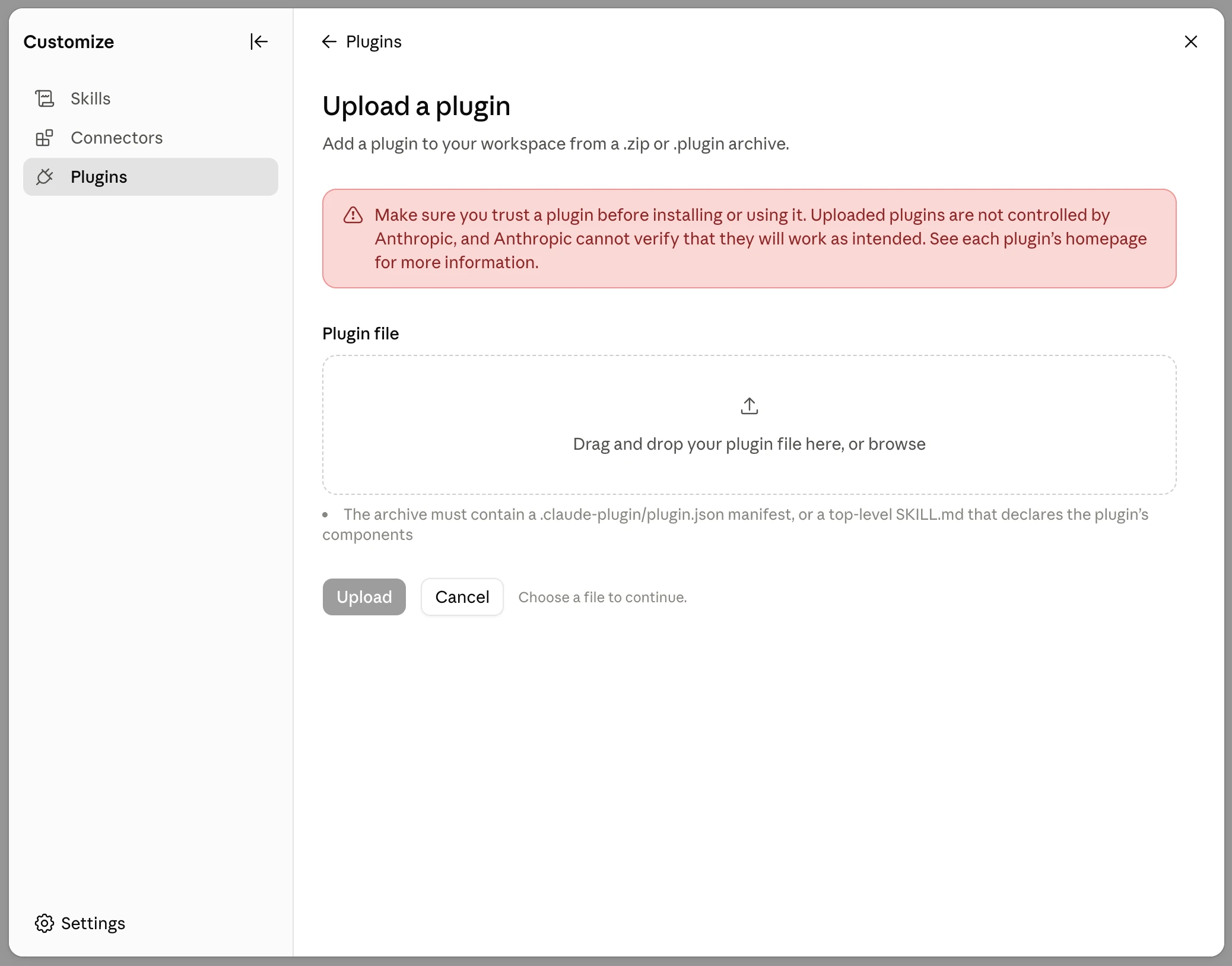
Upload a plugin screen with an empty drop area -
Check that the preview reads version-story, then click Upload.
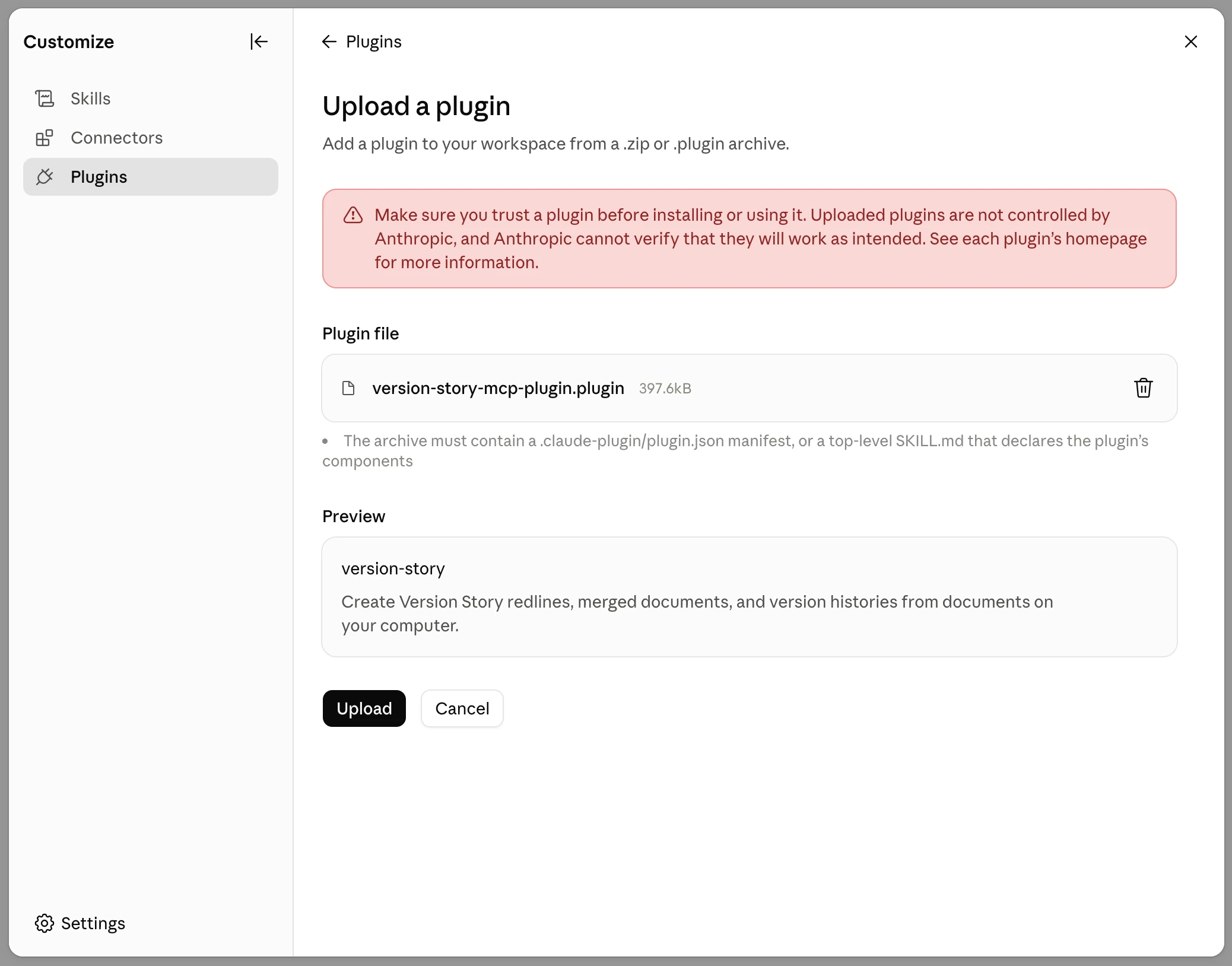
Upload screen with the plugin file selected and its preview shown -
Claude points out that the plugin includes a local MCP server named
compare. That is the piece that does the comparison work on your own machine, so this is expected. Click Continue.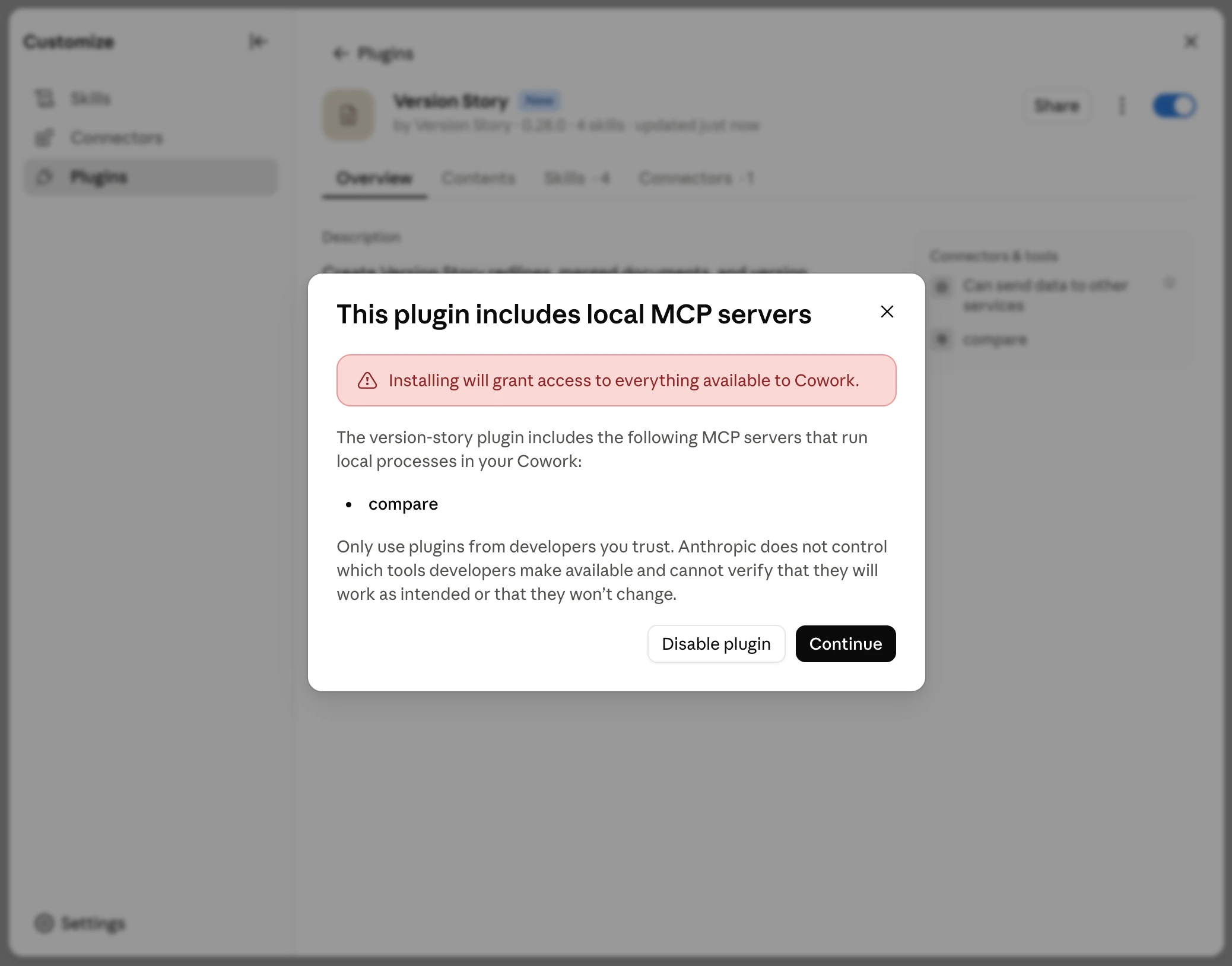
Local MCP servers notice listing the compare server -
The plugin installs and turns on automatically. You will see Version Story listed with its skills.
- If the comparison tools are not available right away in the desktop app, quit and reopen Claude — or wait about ten minutes, since the plugin finishes activating on its own — then start a new conversation.
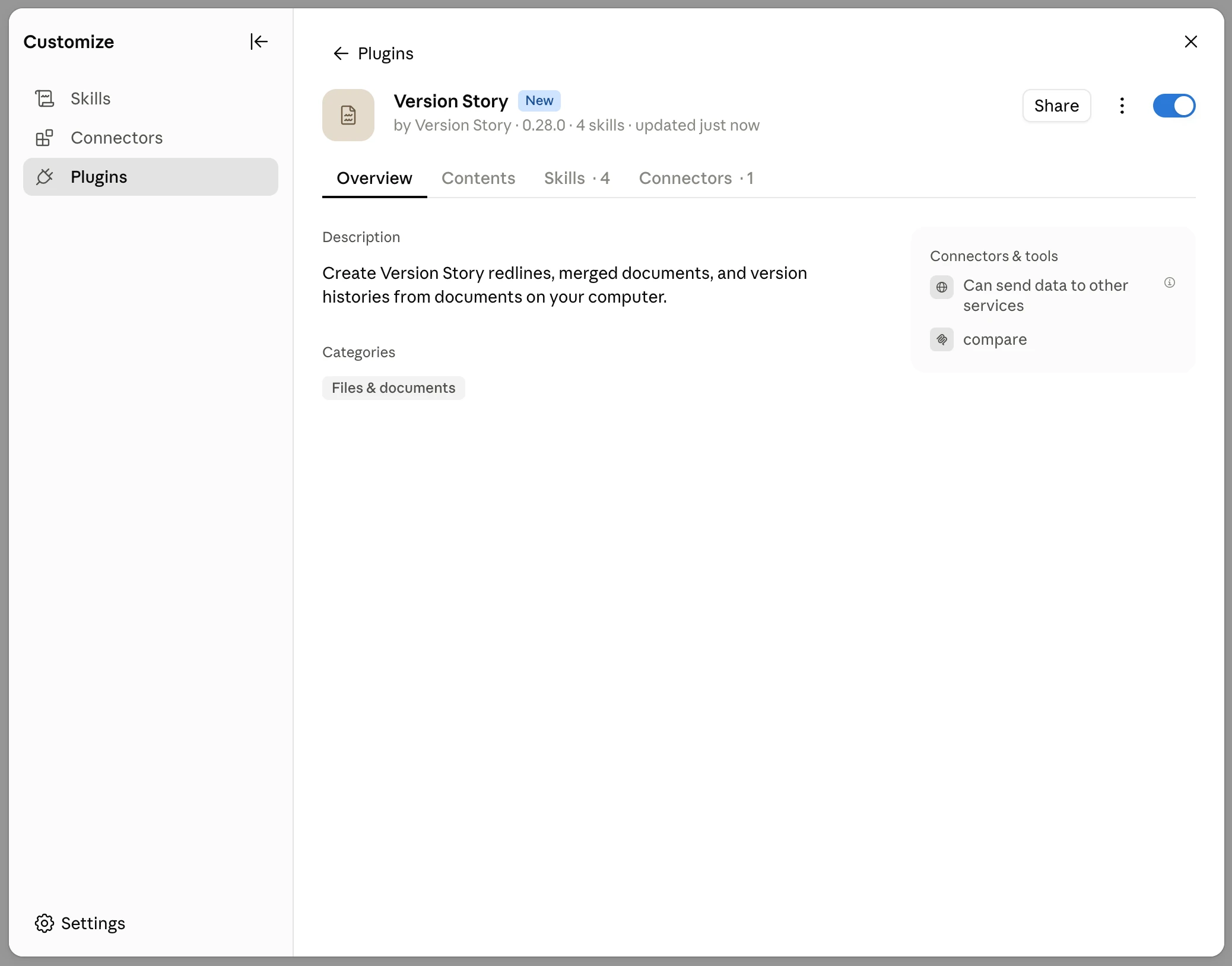
Version Story plugin installed and enabled
2. Enable code execution
-
Open Settings → Capabilities and make sure Cloud code execution and file creation is turned on. The plugin cannot run without it.
- That first toggle is the only one the plugin needs. Allow network egress and the Domain allowlist below it belong to the connector, so leave them however you found them — the plugin transfers documents from its own process.
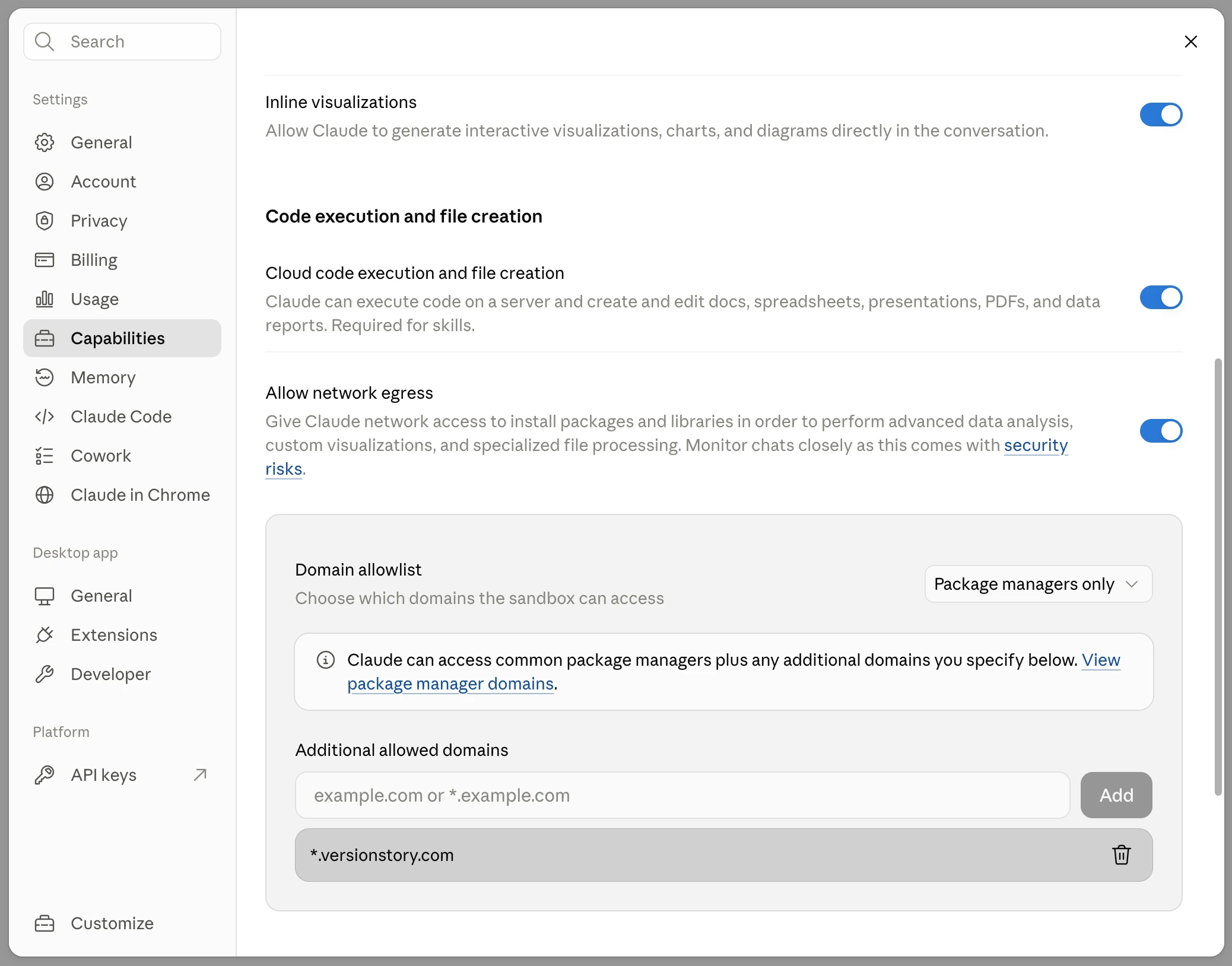
Capabilities screen with cloud code execution turned on
Update your system prompt
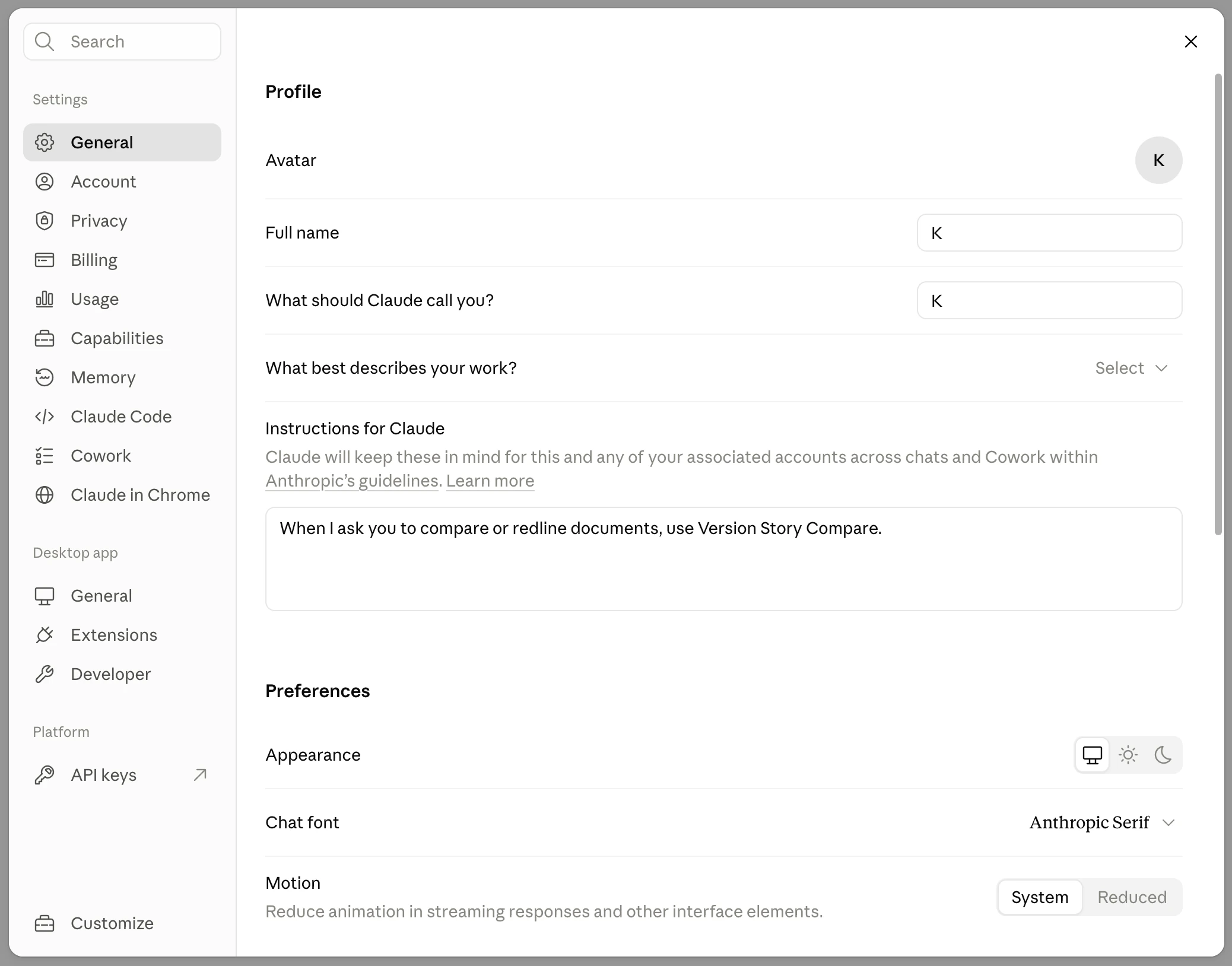
Under General → Instructions for Claude, add the following line:
When I ask you to compare or redline documents, use Version Story Compare.
This tells Claude to reach for Version Story on its own whenever you ask for a comparison, so you never have to name it in a prompt. Your settings should look like this:
Test it
Start a new Claude session — Cowork works great — point Claude at two versions of a document in one of your folders, and ask it to redline them using Version Story. Claude will return an interactive redline link and the redline file itself.
The plugin does not run in plain Claude Chat. To cover that case as well, add the connector: see the MCP server installation guide. Adding both is safe — Claude merges them into one tool set and prefers the plugin.