
Overview
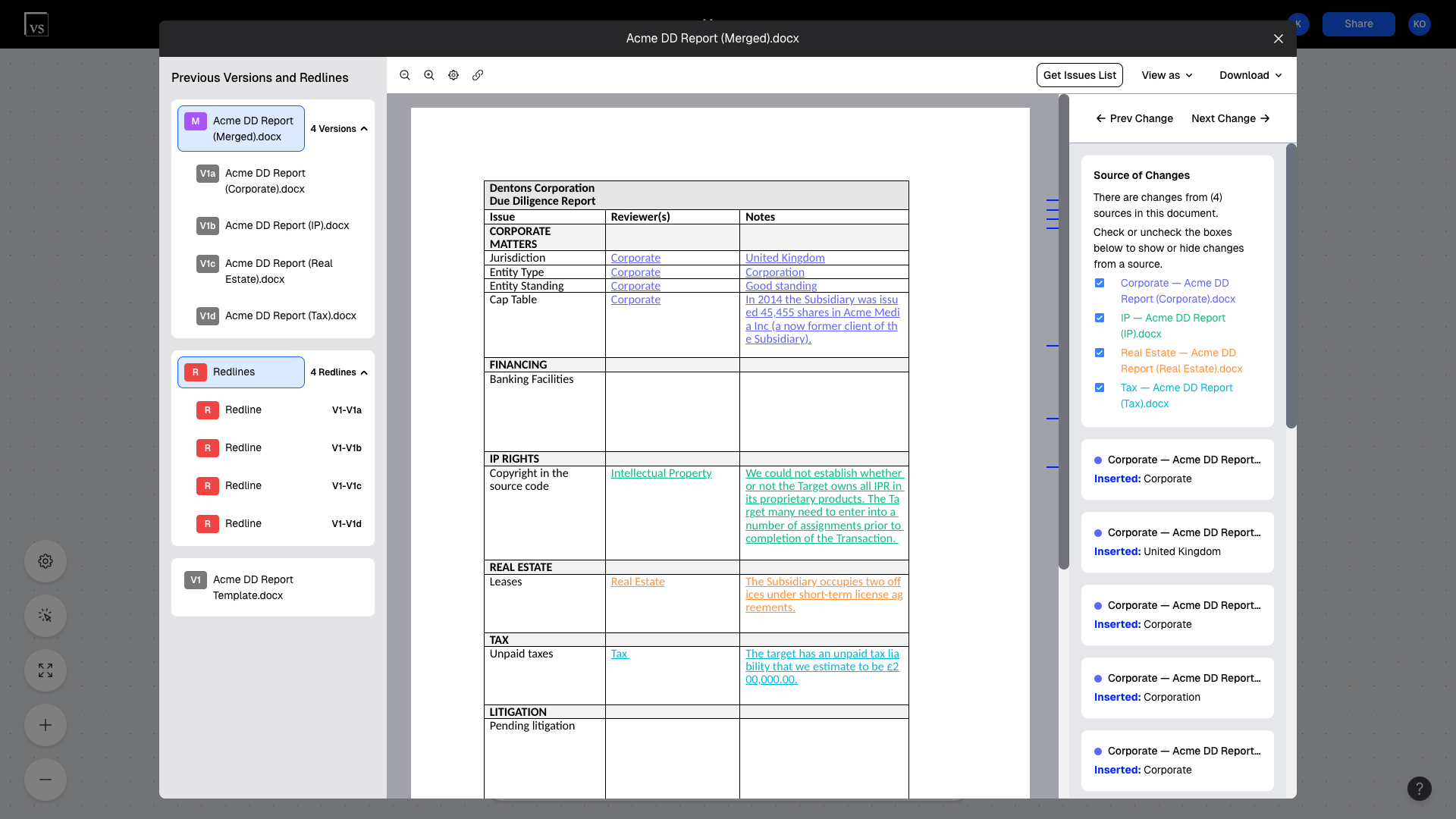
When you merge documents in Version Story, we show the changes from each version/author in a different color in our document viewer:
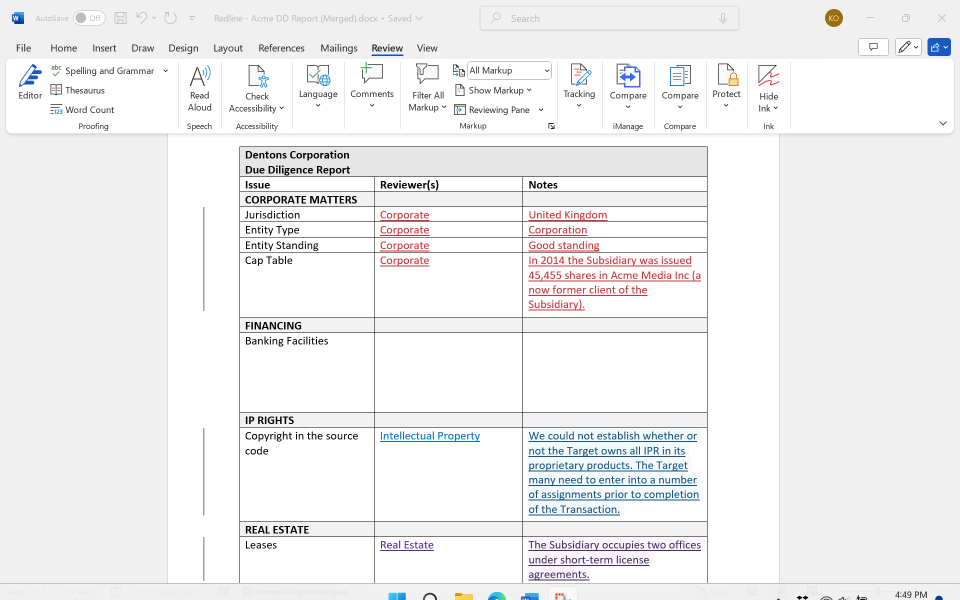
When you download the merged document and open it in Microsoft Word, you may find yourself taken aback to see all the changes in a single color:
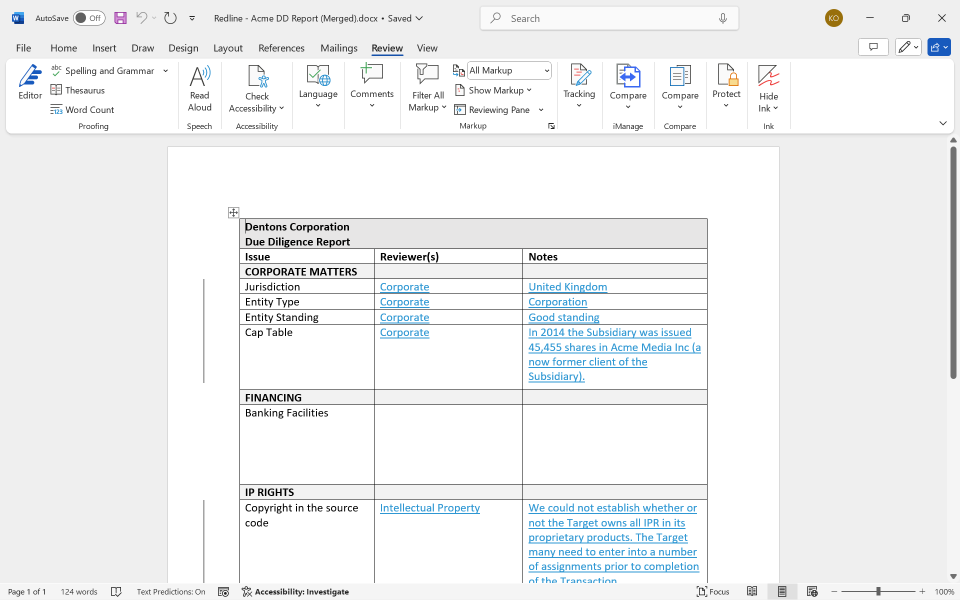
This occurs because your settings in Microsoft Word determine the color of the changes. The Version Story application, unfortunately, cannot influence these colors. Fortunately, you can easily adjust your settings in Word by following these steps:
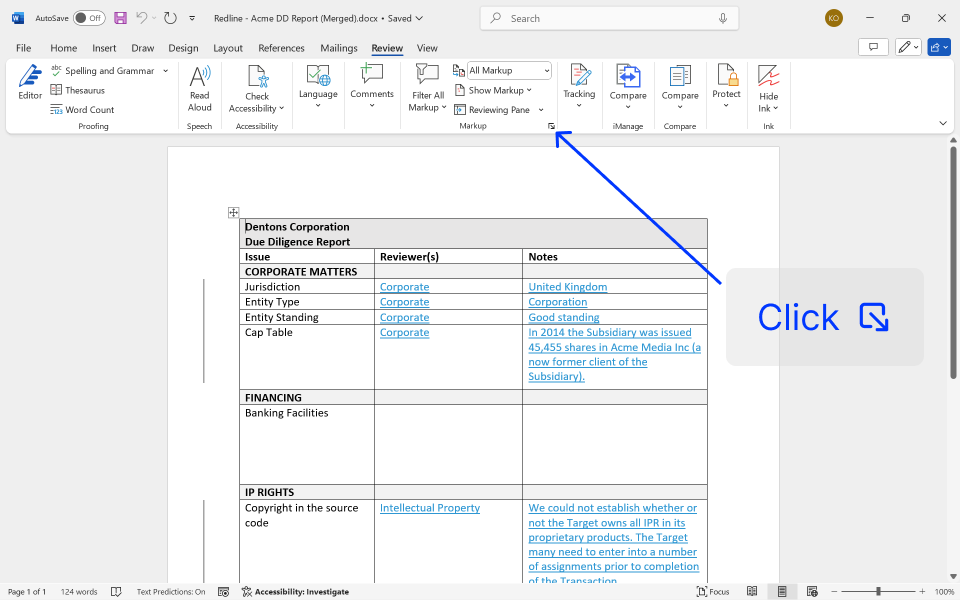
(1) Navigate to the Review tab.
(2) Select the expand button in the Markup section:
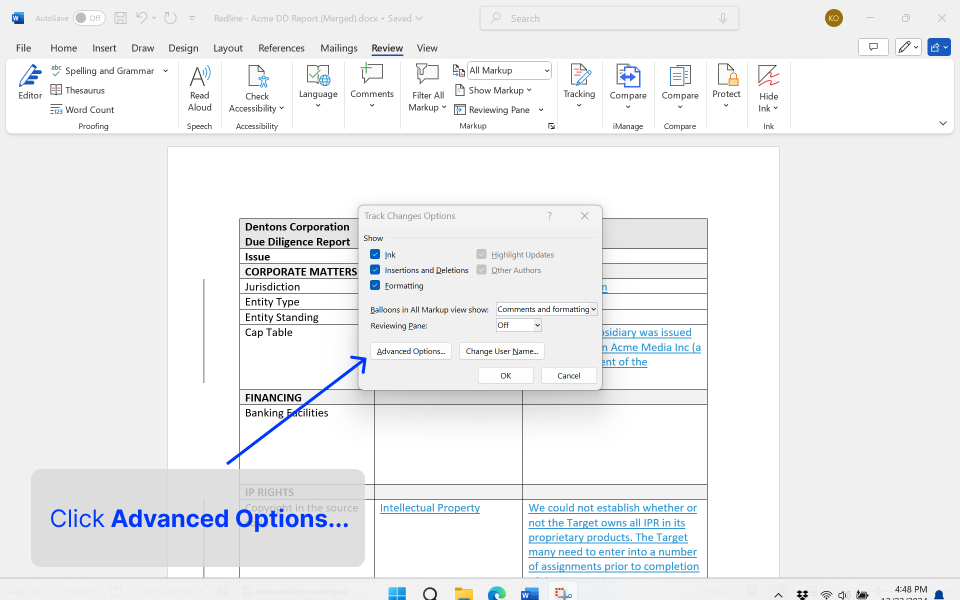
(3) Choose Advanced Options... in the popup window that opens:
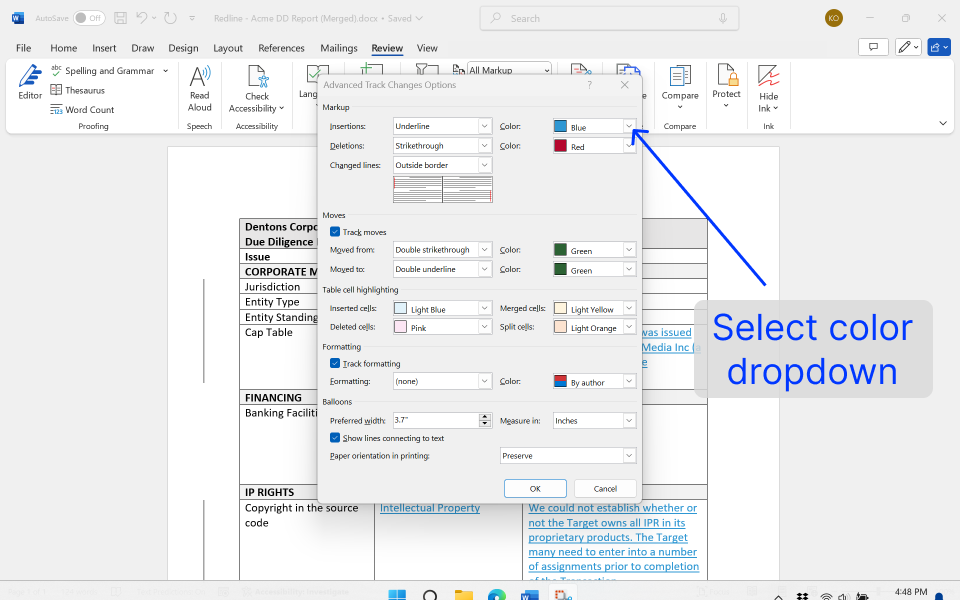
(4) Select the dropdown menu for Color next to Insertions:
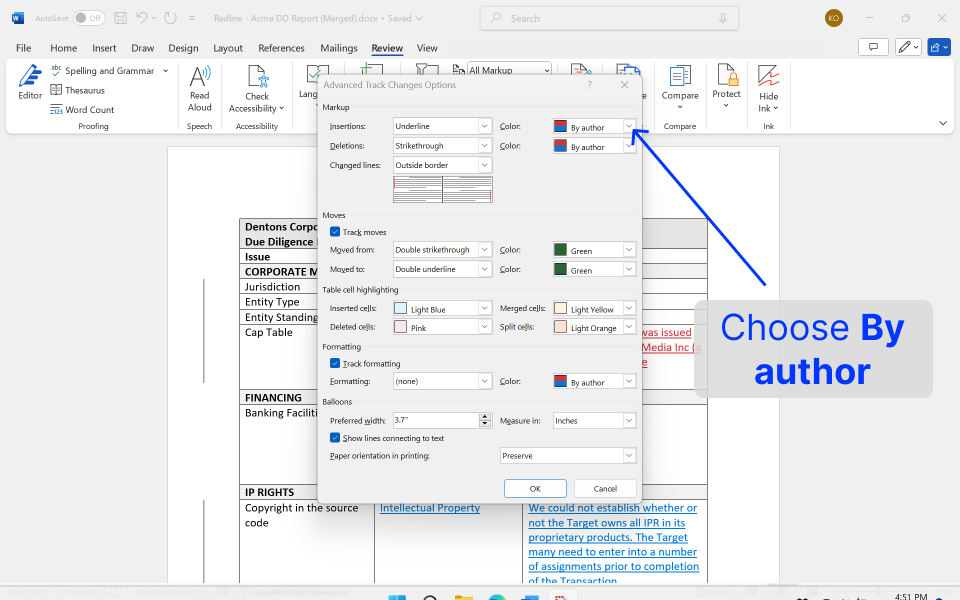
(5) Choose the By author option, and do the same for Deletions:
(6) Close the settings window. You will now see the changes from different versions/authors appear in different colors in Word:
Related Articles
Merge Documents
Click here if you need a refresher on how to merge documents.