
Overview
To merge documents together, they must share the same previous version in common.

Merge the drafts
-
Add to the project the two or more versions you want to merge, and the previous version they share.
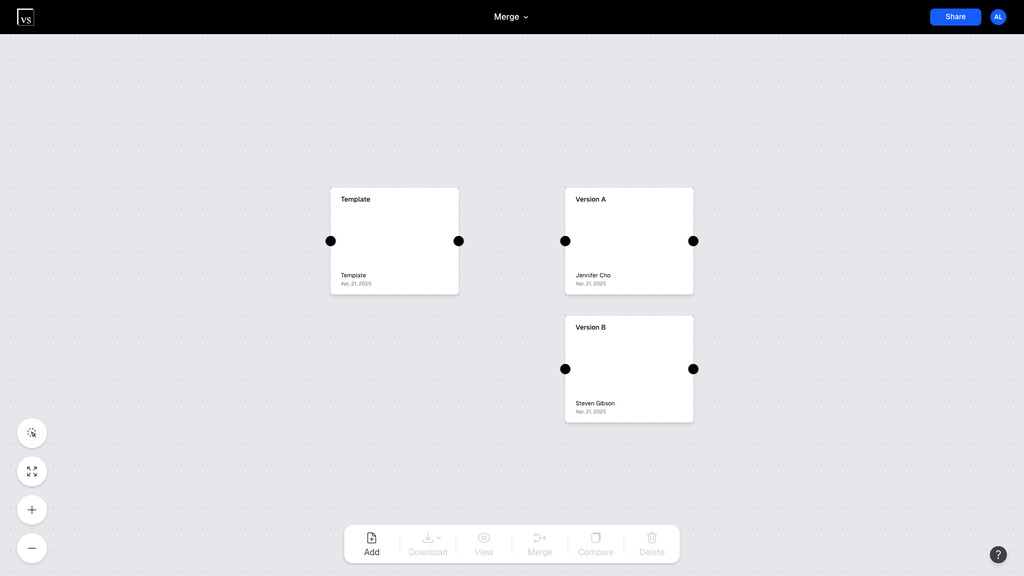
Adding the versions to merge and their shared previous version to the project -
Connect each version you want to merge to that same previous version.
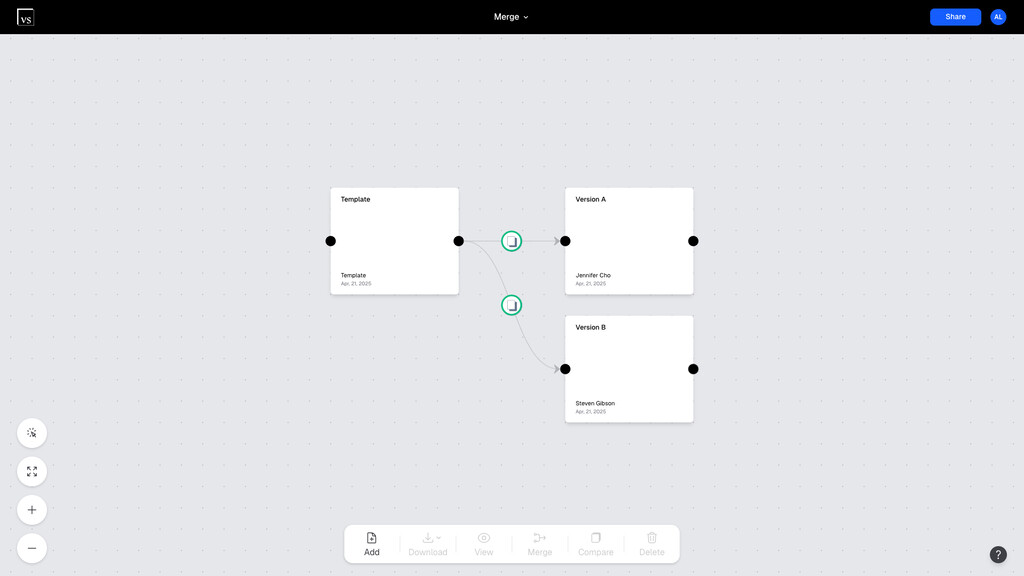
Connecting the versions to merge to the same previous version -
Select the versions to merge: Control-click each one on Windows, or Command-click on a Mac.
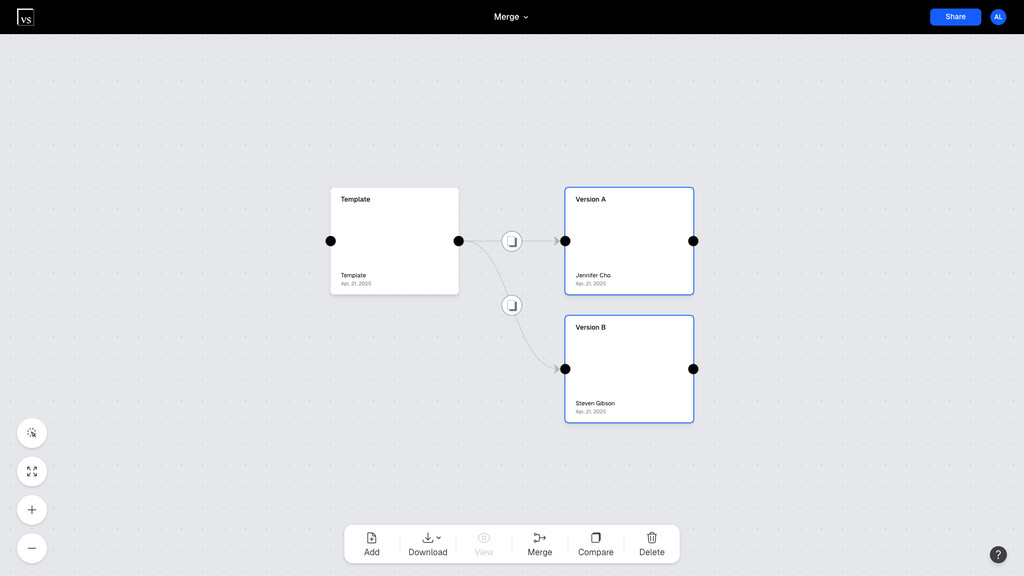
Control- or Command-clicking to select each version to merge -
Click Merge in the bottom toolbar, name the merged version, and click Start Merge.
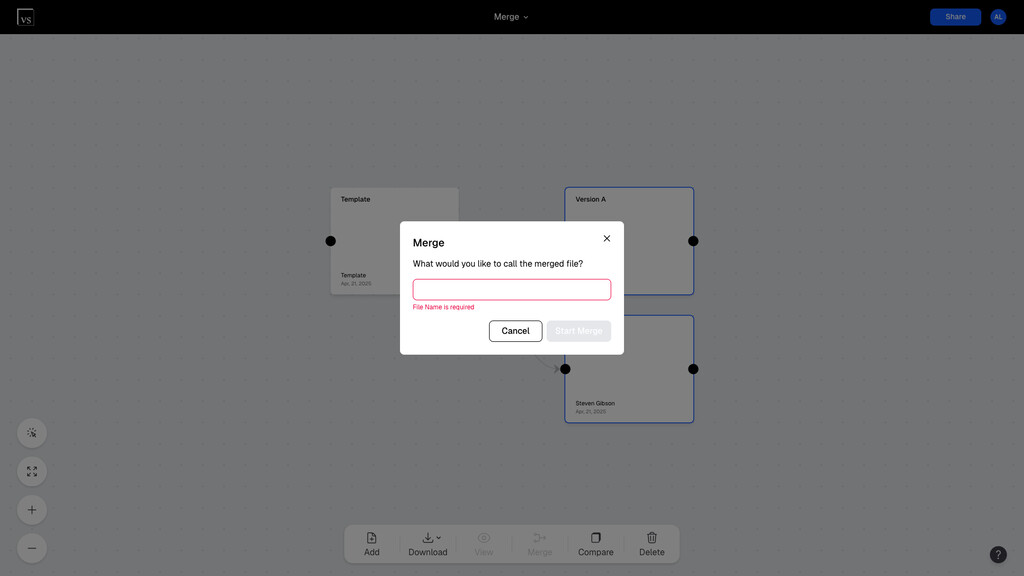
Naming the merged version and clicking Start Merge -
A new tile appears on the project canvas for the merged version. Click its View Merge Redline button.
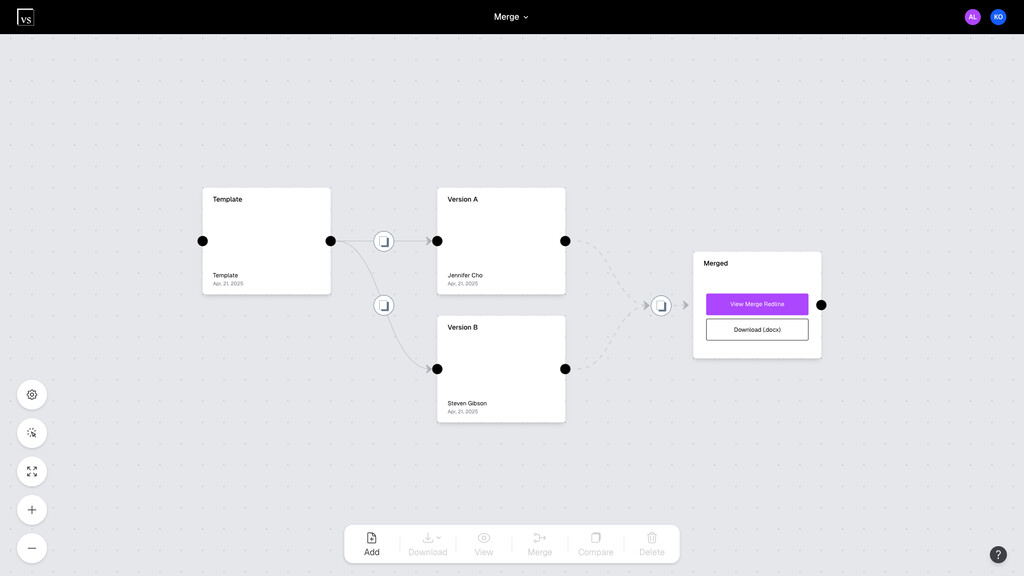
The new merged-version tile on the project canvas -
The merged version opens in the document viewer, with each author's changes in their own color.
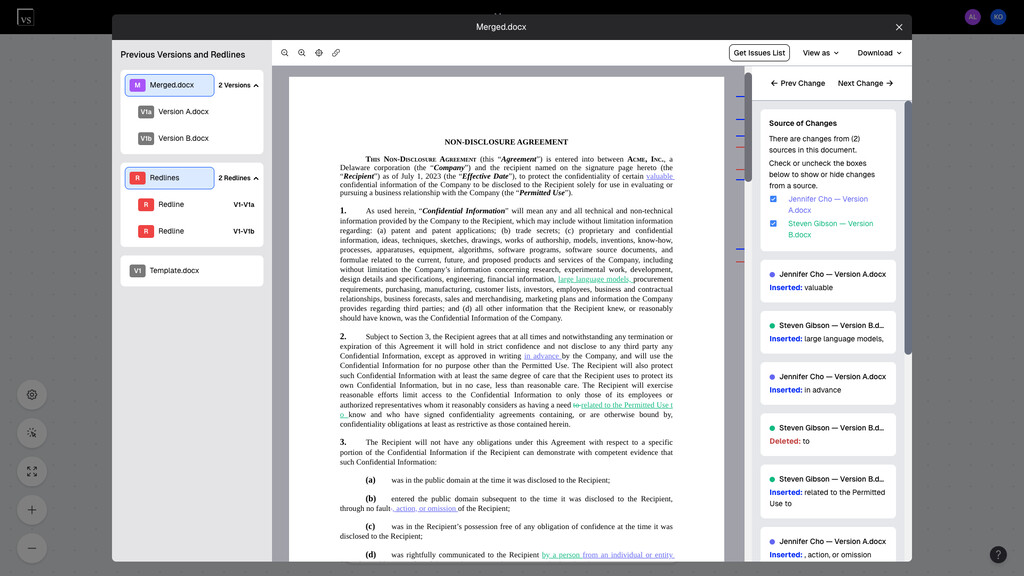
The merged version in the document viewer with each author’s changes in a unique color


Download
You can download the merged version as a Word (.docx) file with tracked changes.
When you open it in Word, the colors for the different authors differ from the ones in Version Story: Word's own settings choose them. Show Merge Changes by Author in Word explains how to show each author in a color of their own.
Related
- Merge Conflicts: how Version Story handles changes that conflict
- Show Merge Changes by Author in Word: one color per author in Word