# Claude installation guide
> Add the Version Story MCP server to Claude as a custom connector, on a personal account or across an organization, and allow the network egress it needs.
You will need:
- A Version Story account
- The Claude desktop app or claude.ai
Claude reaches the MCP server as a **custom connector**. Setting it up is two steps: add the
connector and sign in, then turn on code execution and file creation and allow network egress
to Version Story so documents and finished redlines can move between Claude and the engine.
The connector works on any Claude surface and any device, including plain Claude Chat. On the
desktop app and in Cowork, the [plugin](/developers/plugin/overview) is the faster path to the
same comparisons; the two coexist, so install both if you use Chat as well.
Pick the path that applies below. If your team has already added Version Story Compare in
organization settings, open the organization path and skip to **For each member**.
Set up for an organization
An owner adds the connector once for the whole organization and turns on network access, then
each member connects their own Version Story account.
### 1. Add the connector
#### For the organization owner
1. Open **Organization settings** and go to **Connectors** (under Libraries & Access).
2. Click **Add → Custom → Web**.
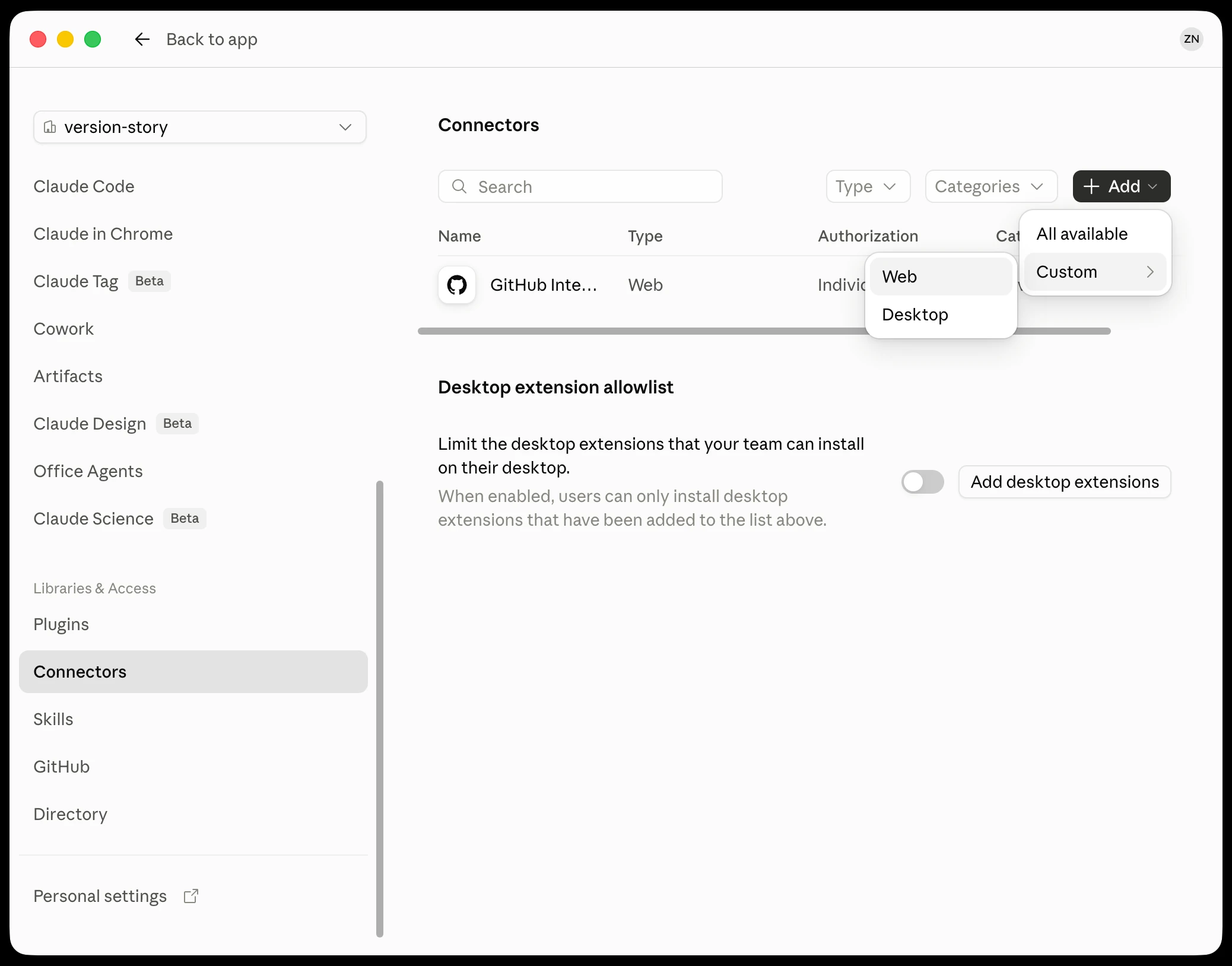
3. Fill in the two fields and click **Continue**:
- Name:
```
Version Story Compare
```
- Remote MCP server URL:
```
https://mcp-compare.versionstory.com/mcp
```
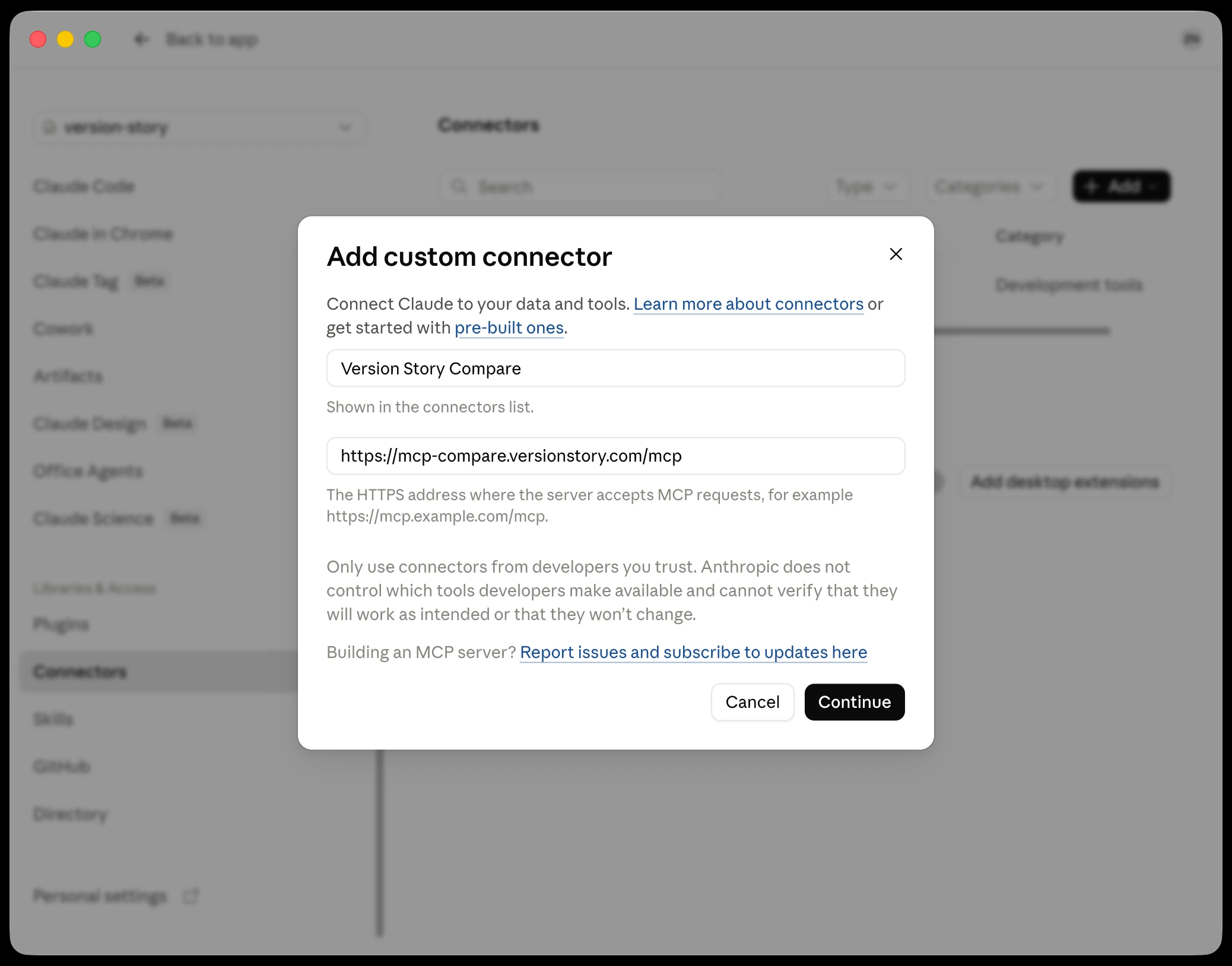
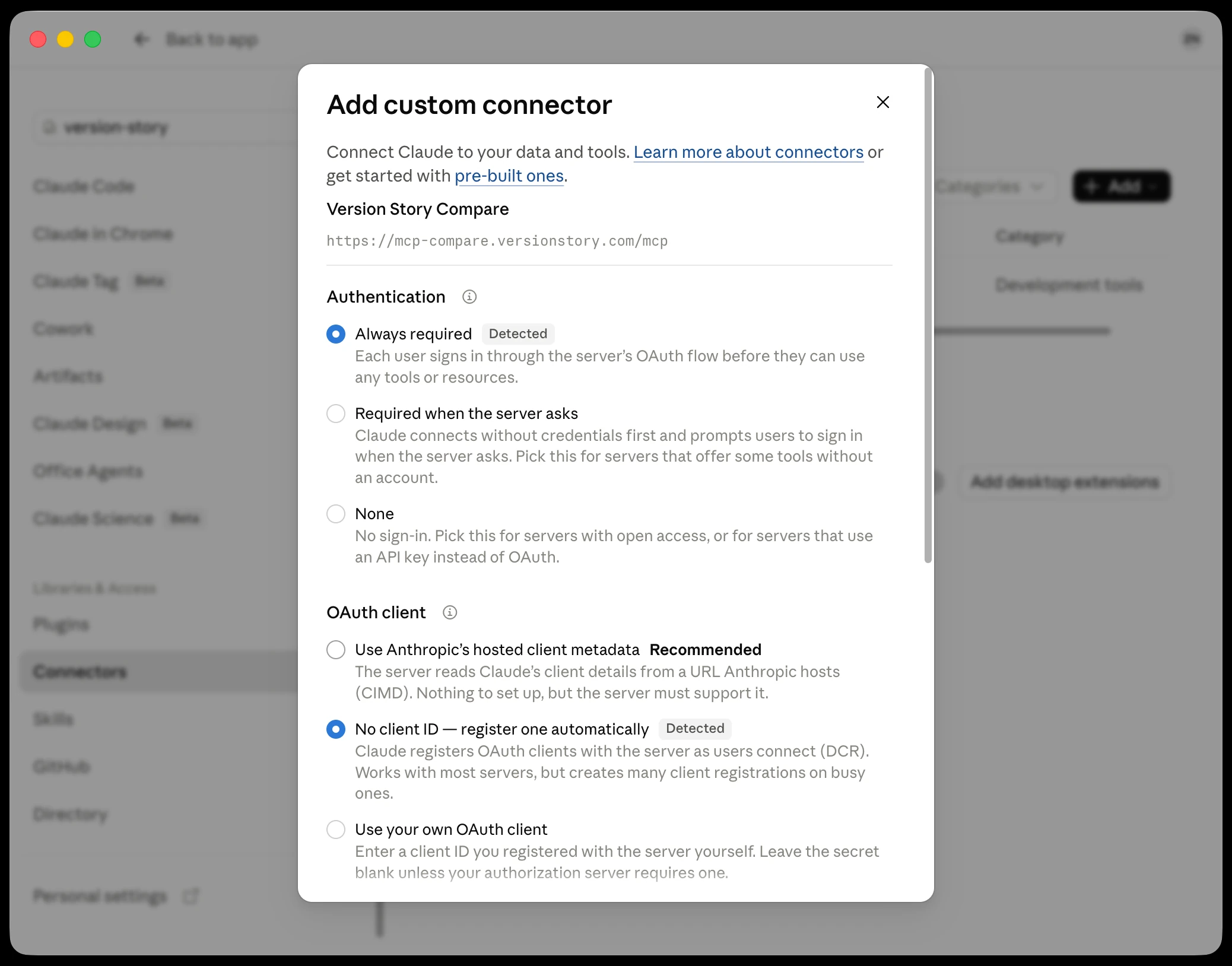
4. Claude reads the server and fills in the rest for you: **Authentication** lands on **Always
required** and **OAuth client** on **No client ID — register one automatically**, each marked
*Detected*. Leave both as they are and click **Add**.
- **Always required** is what you want. Each member signs in to their own Version Story
account, so redlines land in the right person's projects.
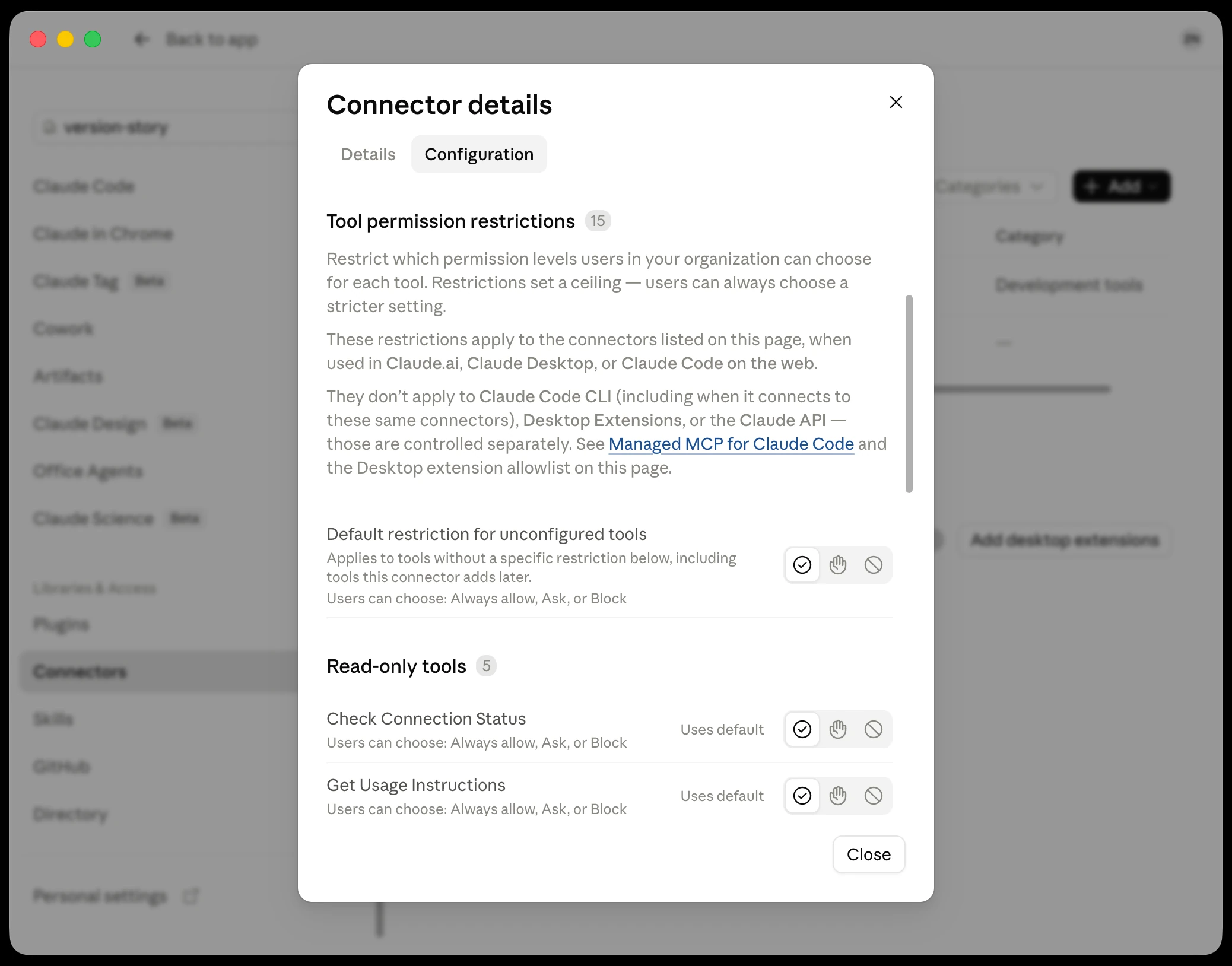
5. Open the connector and go to **Configuration**. **Tool permission restrictions** set a
ceiling on what members are allowed to choose, and the default already permits **Always
allow** — leave it there.
- Tightening the ceiling stops members from letting a comparison run start to finish.
Members can always choose something stricter for themselves.
#### For each member
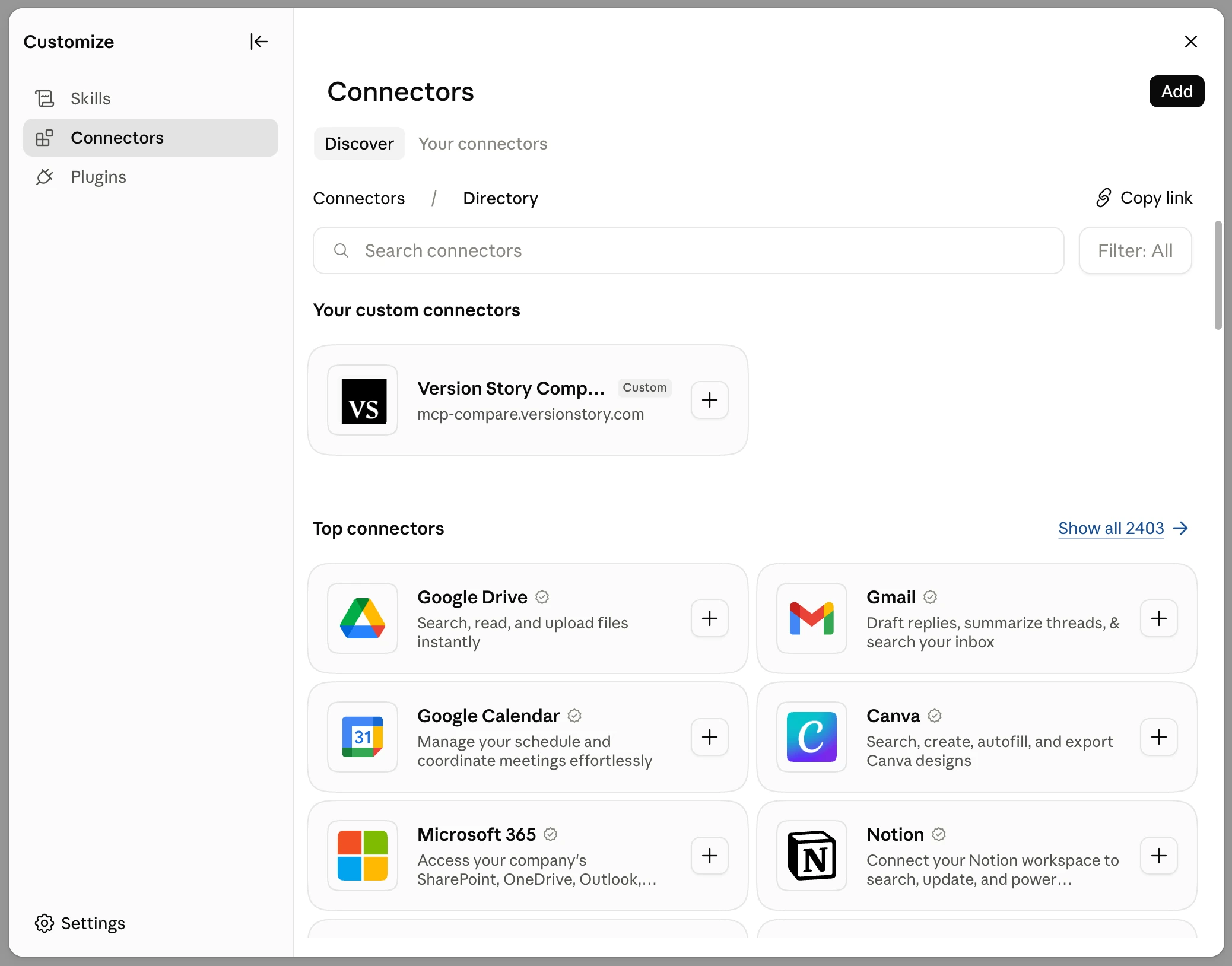
1. Open **Settings → Customize → Connectors**. Version Story Compare is waiting on the
**Discover** tab under **Your custom connectors**. Click it.
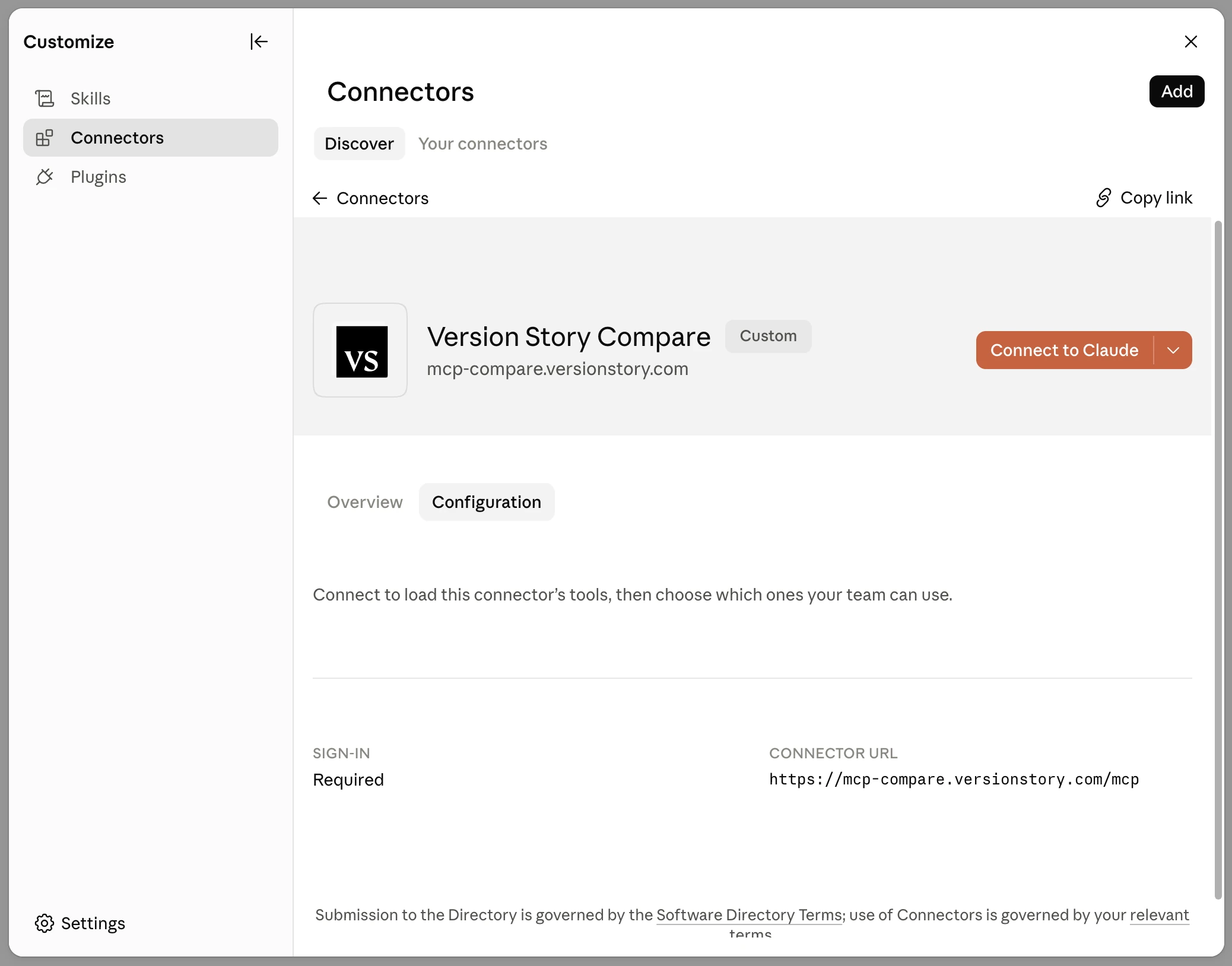
2. Click **Connect to Claude**.
3. Sign in to Version Story if you are not already authenticated, then click **Authorize**. You
will be redirected back to Claude.
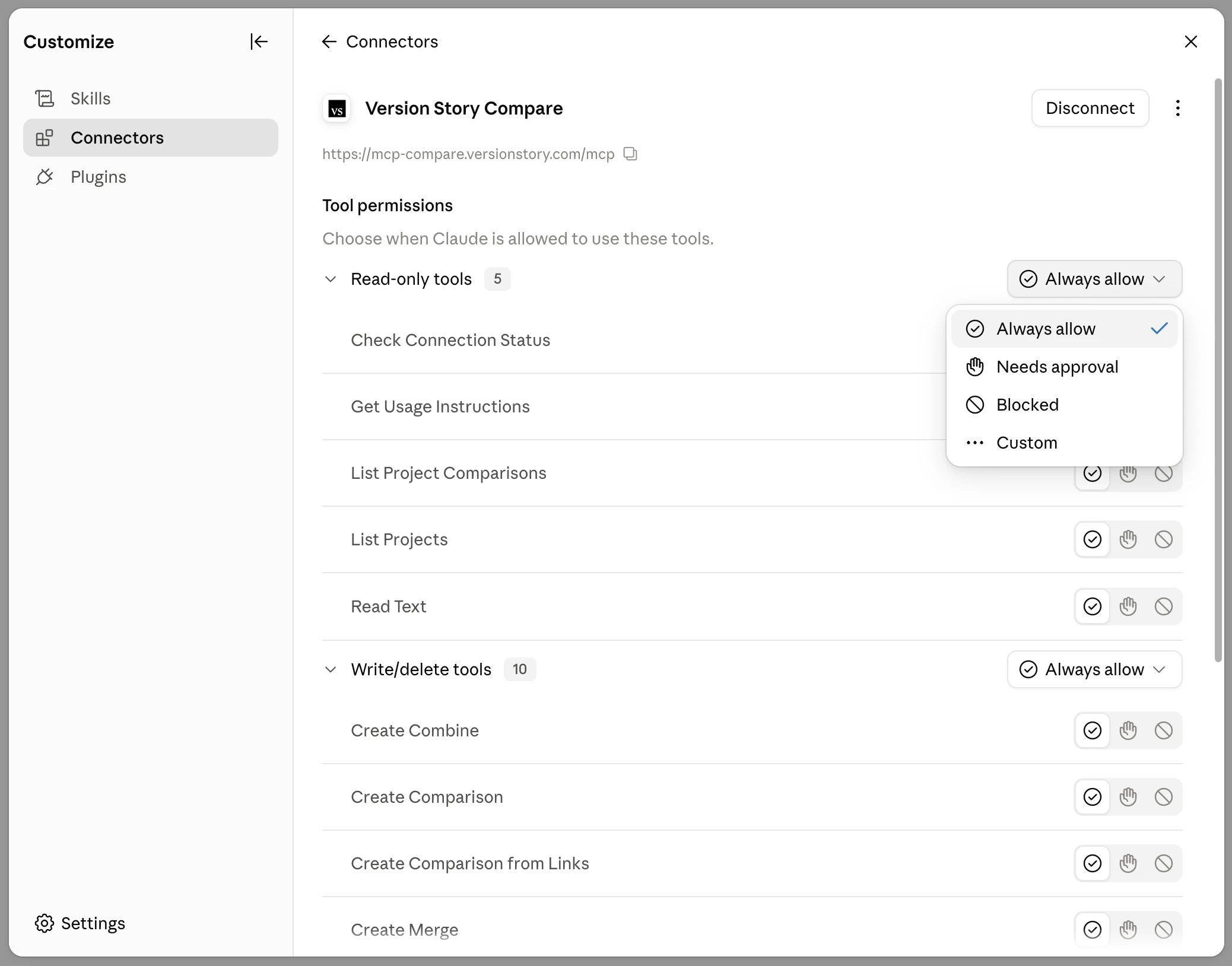
4. Set both tool groups — **Read-only tools** and **Write/delete tools** — to **Always allow**
using the dropdown to the right of each group heading.
### 2. Enable code execution and network access
An owner enables code execution, network egress, and the Version Story domain once for the
whole organization.
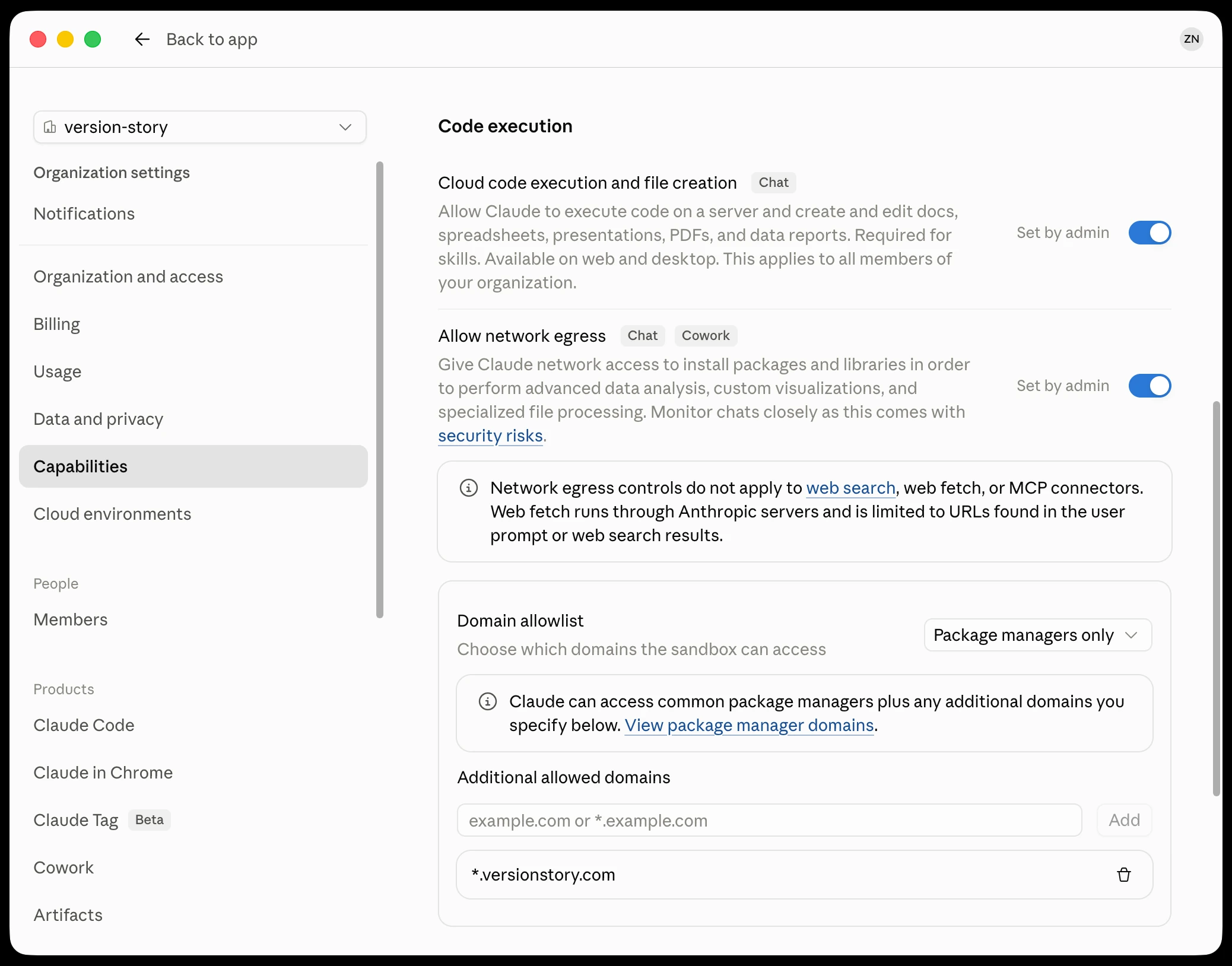
1. Open **Capabilities** in Organization settings and make sure **Cloud code execution and file
creation** is turned on. The connector requires it — the network egress setting lives under
it and has no effect while it is off.
2. Turn on **Allow network egress**.
3. Add the following domain under **Additional allowed domains**:
```
*.versionstory.com
```
This lets the connector send your documents to Version Story and retrieve the finished
redlines.
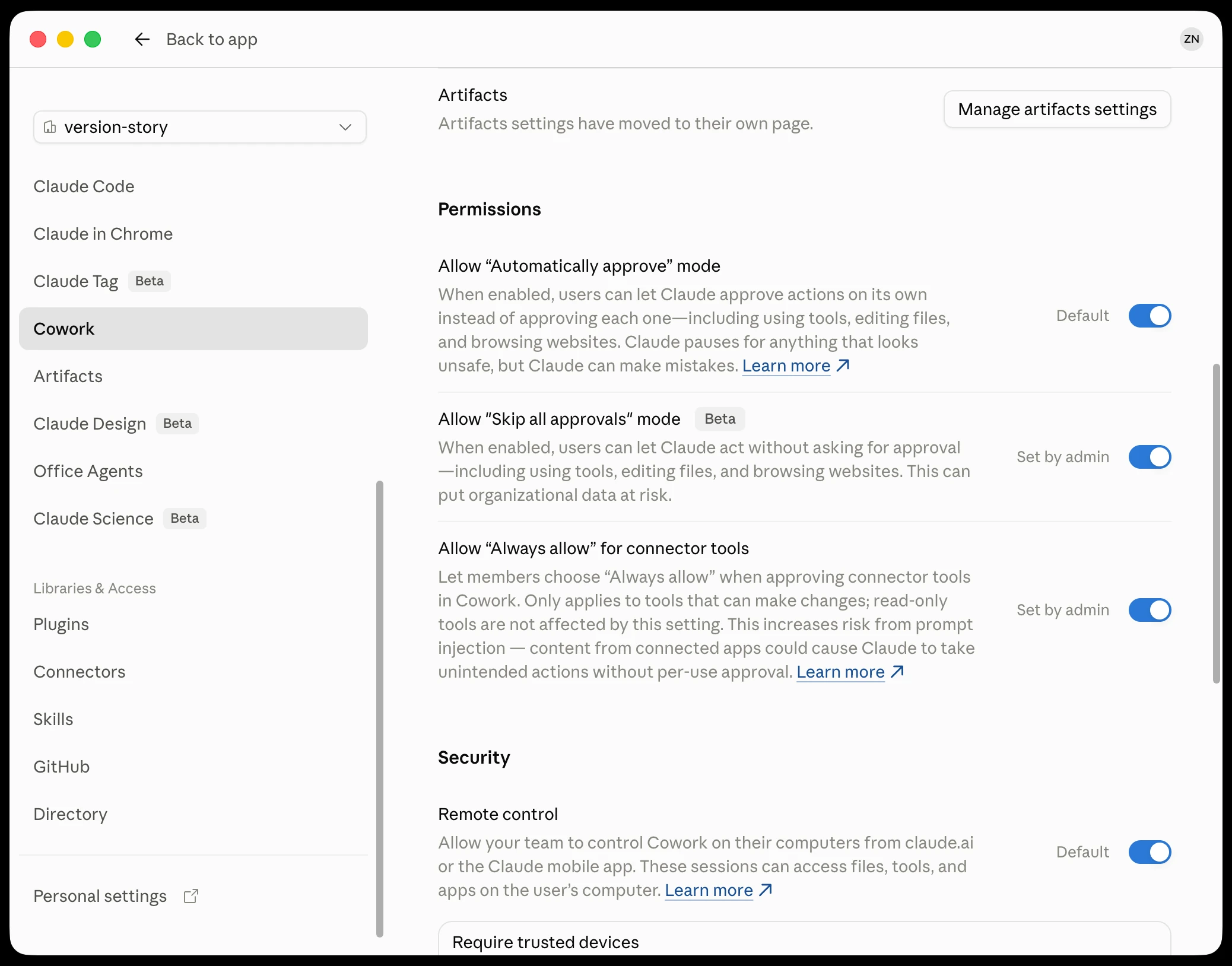
4. Open **Cowork** in Organization settings and, under **Permissions**, turn on both:
- **Allow "Skip all approvals" mode**
- **Allow "Always allow" for connector tools**
- Without the second one, members cannot set the Version Story Compare write tools to
**Always allow**, and Claude will stop mid-workflow to ask permission for each comparison.
Set up on a personal account
### 1. Add the connector
1. In Claude, open **Settings → Customize → Connectors**.
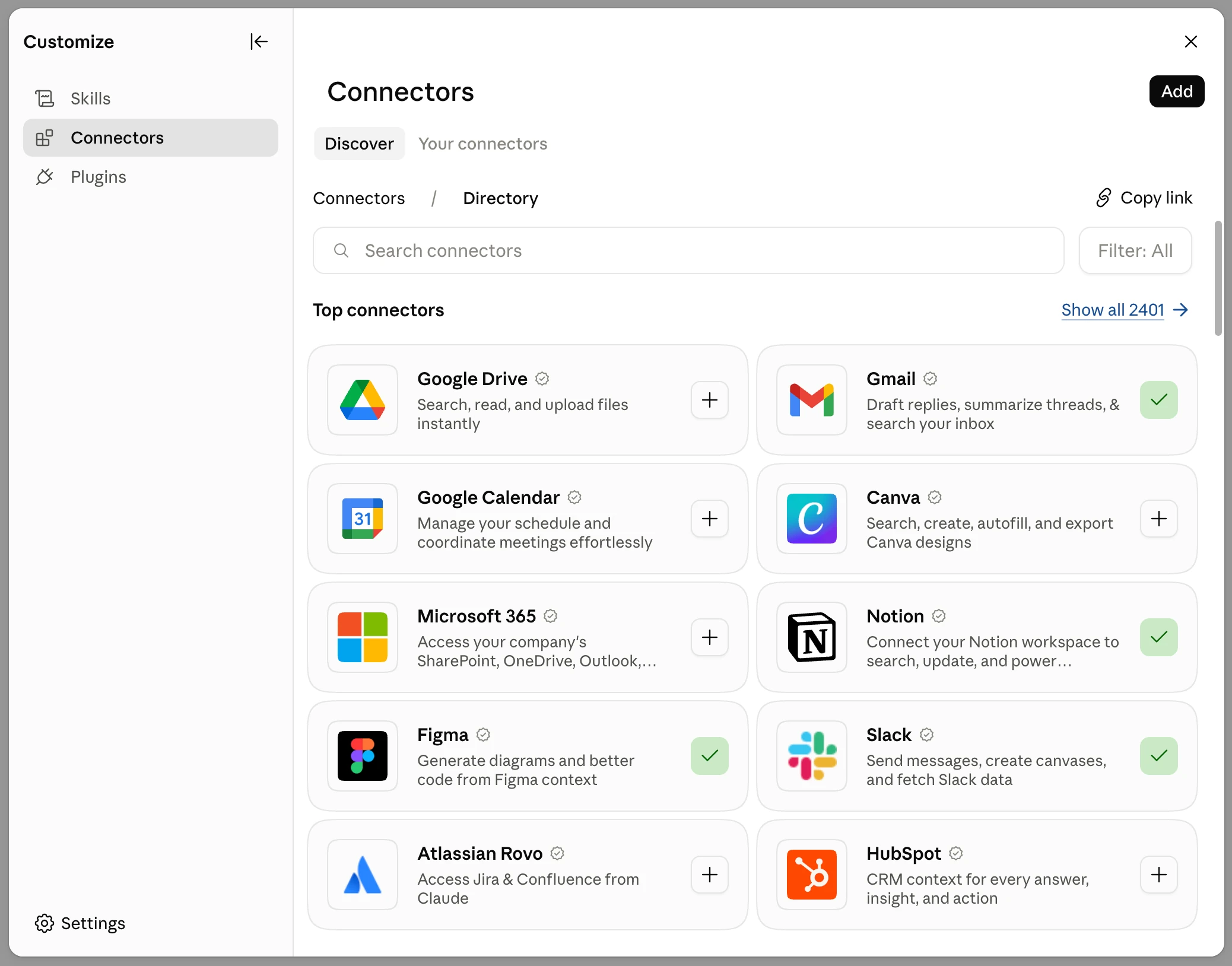
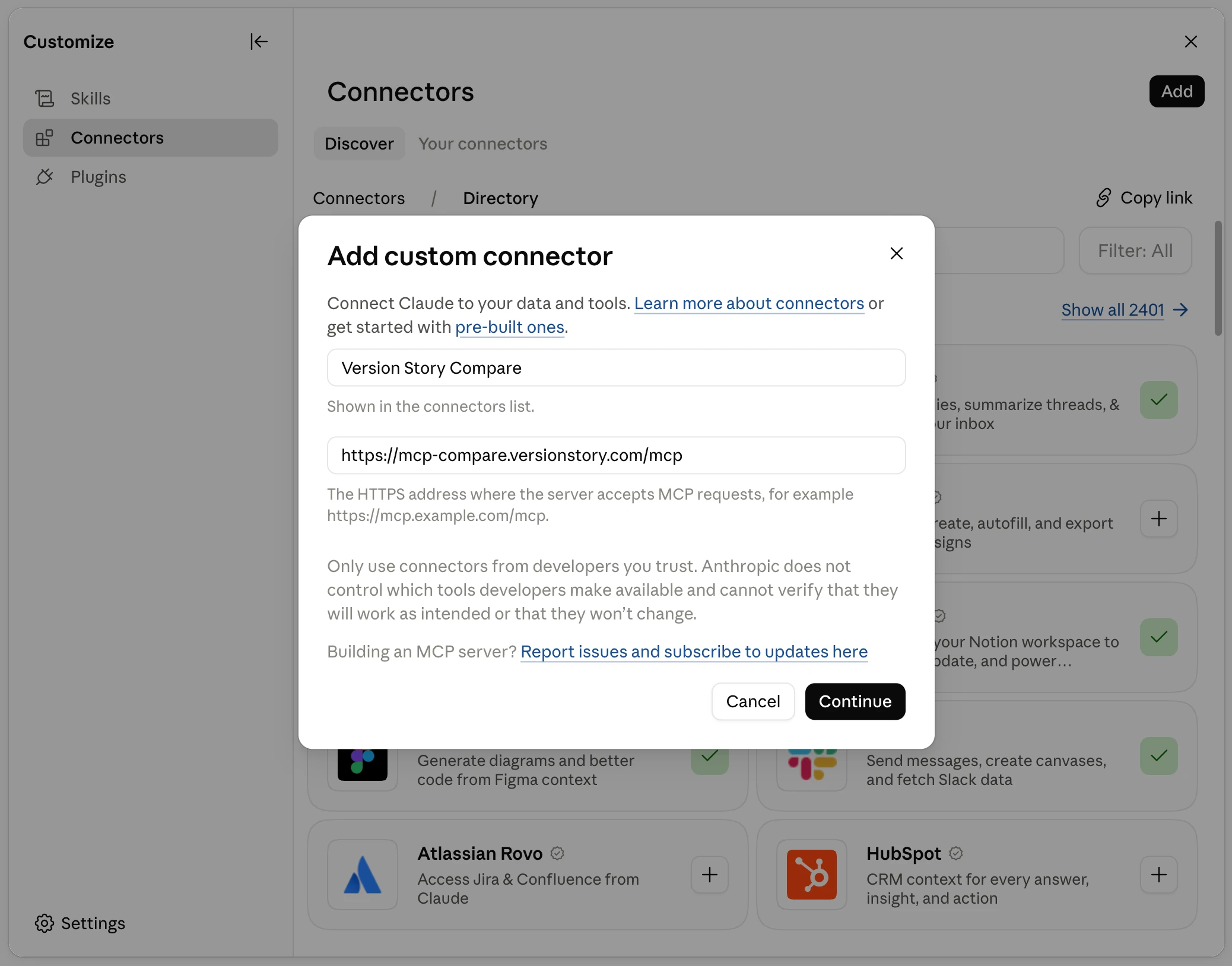
2. Click **Add**. Fill in the two fields and click **Continue**:
- Name:
```
Version Story Compare
```
- Remote MCP server URL:
```
https://mcp-compare.versionstory.com/mcp
```
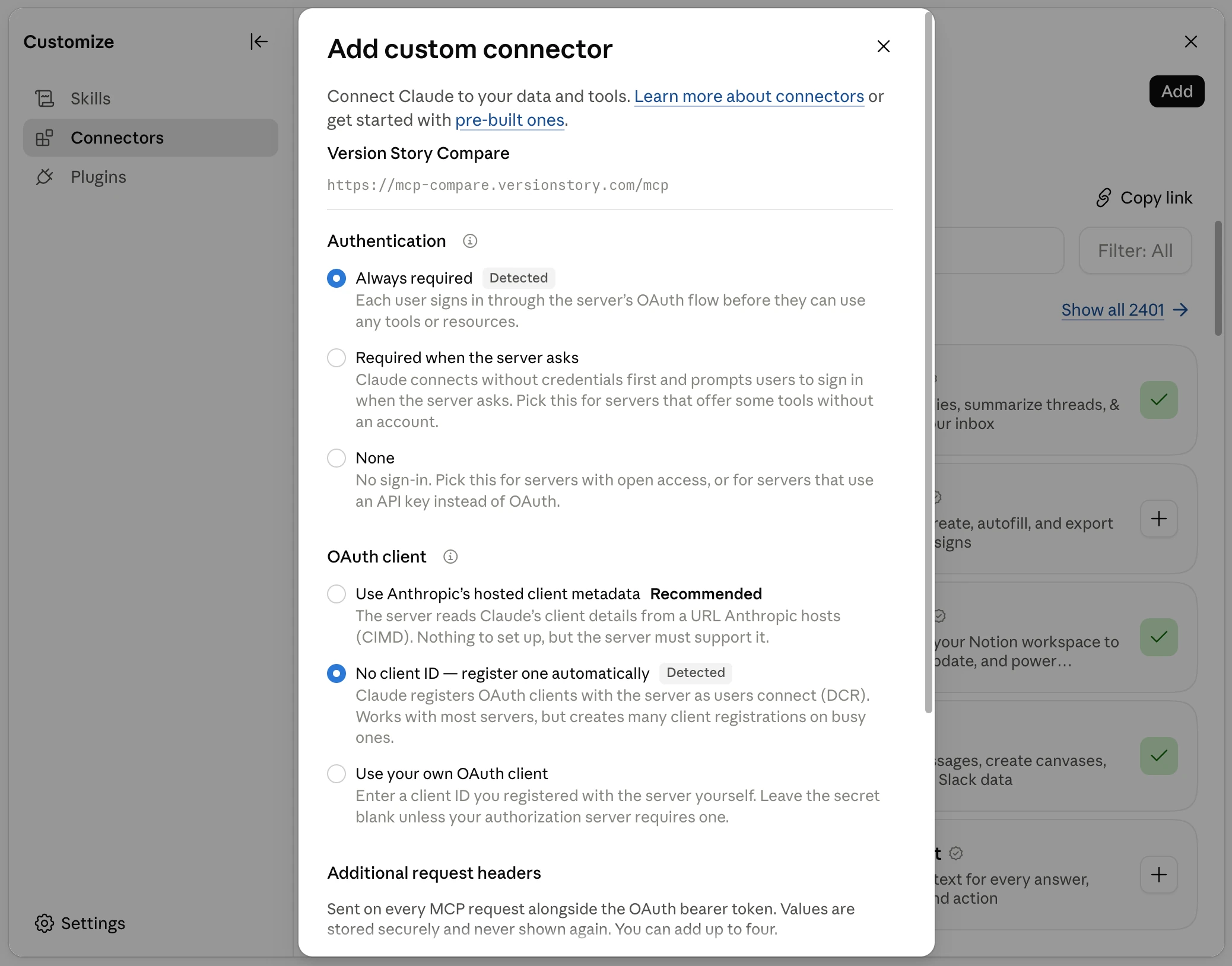
3. Claude reads the server and fills in the rest for you: **Authentication** lands on **Always
required** and **OAuth client** on **No client ID — register one automatically**, each marked
*Detected*. Leave both as they are, skip **Additional request headers** and **Advanced**, and
click **Add**.
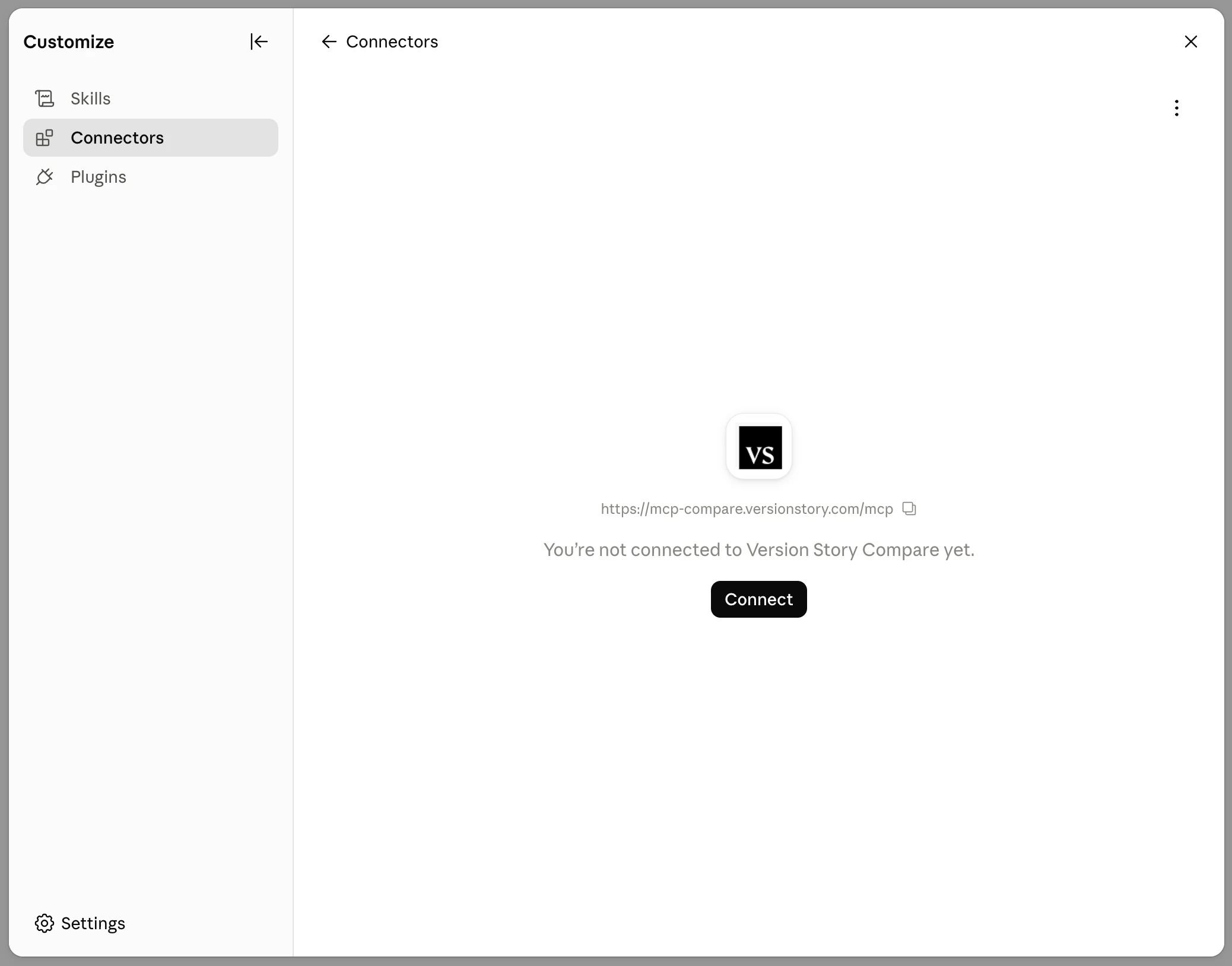
4. The Version Story Compare connector page opens and says you are not connected yet. Click
**Connect**.
5. Sign in to Version Story if you are not already authenticated, then click **Authorize**. You
will be redirected back to Claude.
6. Back on the Version Story Compare connector page, set both tool groups — **Read-only tools**
and **Write/delete tools** — to **Always allow** using the dropdown to the right of each
group heading.
- On any other setting the comparison tools need approval one call at a time, which stops
Claude mid-workflow. **Always allow** lets it run a comparison start to finish.

### 2. Enable code execution and network access
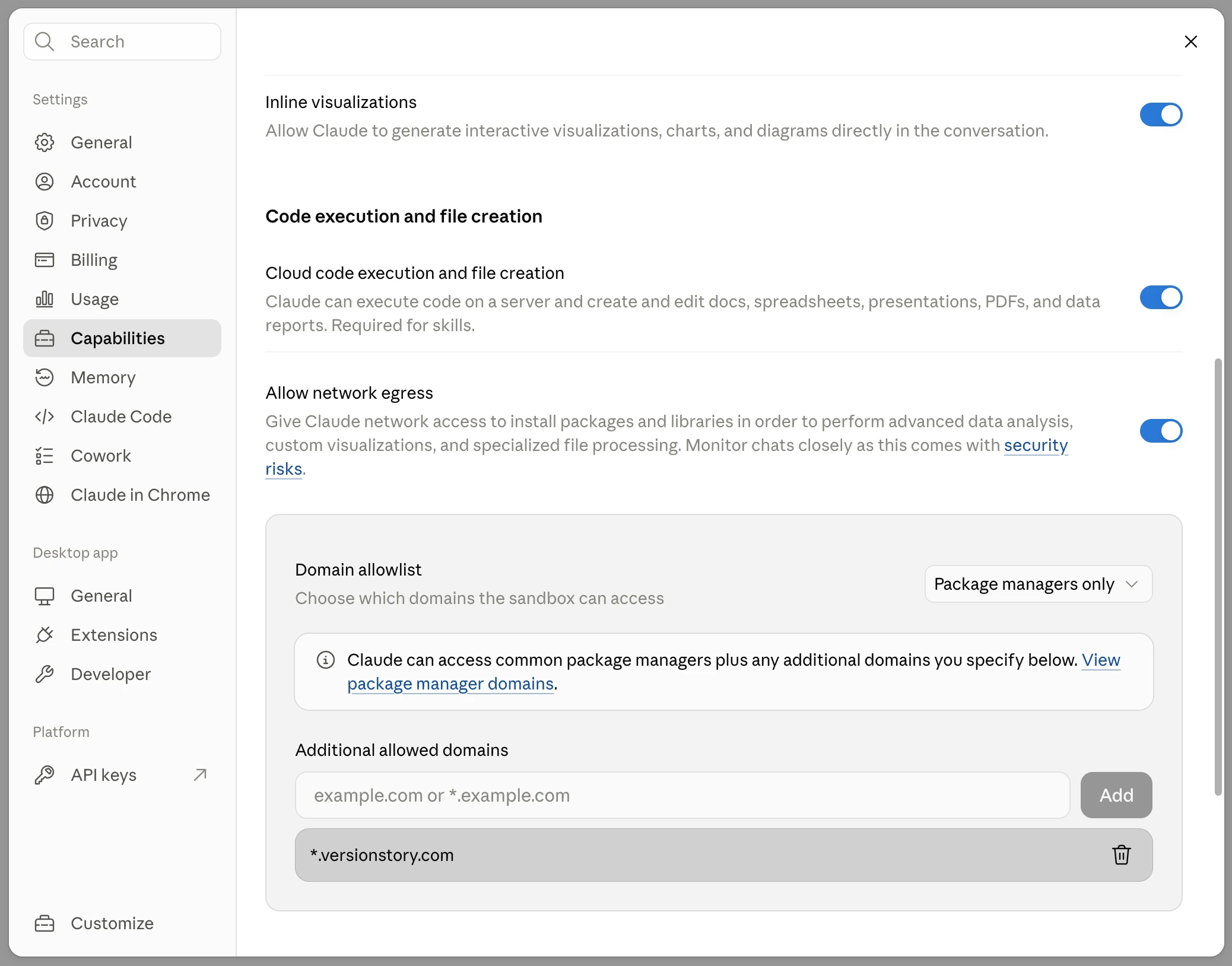
1. Open **Settings → Capabilities** and make sure **Cloud code execution and file creation** is
turned on. The connector requires it — the network egress setting lives under it and has no
effect while it is off.
2. Turn on **Allow network egress**.
3. Add the following domain under **Additional allowed domains**:
```
*.versionstory.com
```
This lets the connector send your documents to Version Story and retrieve the finished
redlines.
## Update your system prompt
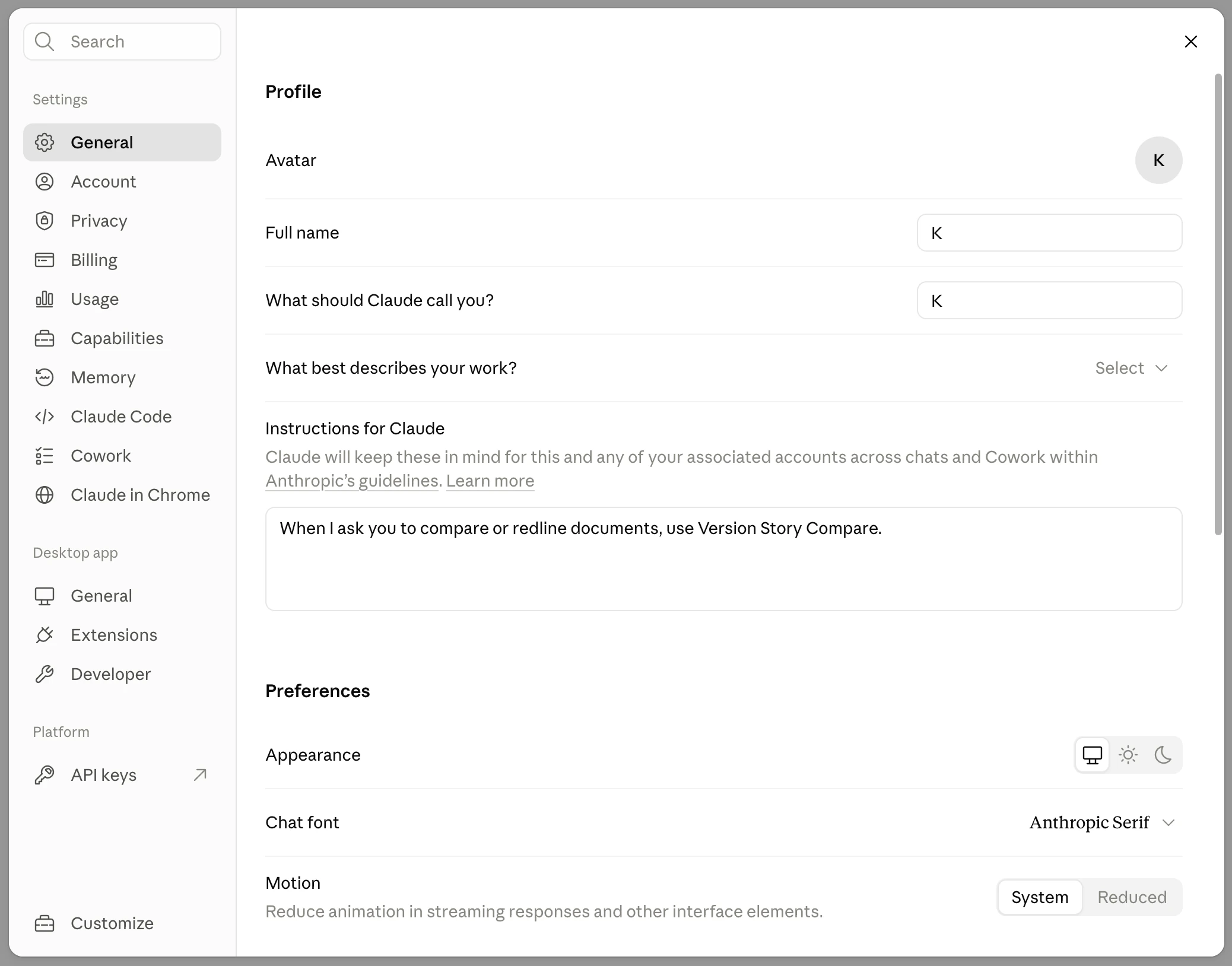
Under **General → Instructions for Claude**, add the following line:
```
When I ask you to compare or redline documents, use Version Story Compare.
```
This tells Claude to reach for Version Story on its own whenever you ask for a comparison, so
you never have to name it in a prompt. Your settings should look like this:
## Test it
Start a new Claude session, attach two versions of a document, and ask Claude to redline them
using Version Story. Claude will return an interactive redline link and the redline file
itself, previewed right in the conversation.
If a comparison fails with a host-allowlist error, the domain step above is missing, the
egress toggle is off, or **Cloud code execution and file creation** is disabled — see
[Errors](/developers/reference/errors).